The Audit Trail is the system's tamper-evident activity log. Every meaningful change — a record created, edited, soft-deleted, restored, or a rate-card decision at inward — is written to it with a timestamp, the acting user, the table affected, and a before/after snapshot. When a client challenges a delivery or a deletion is questioned, this is where you reconstruct exactly what happened and who did it. The viewer is Admin-only; the audit trail viewer is an optional feature that appears when it's enabled for your tenant.
Step 1 — Open the Audit Trail
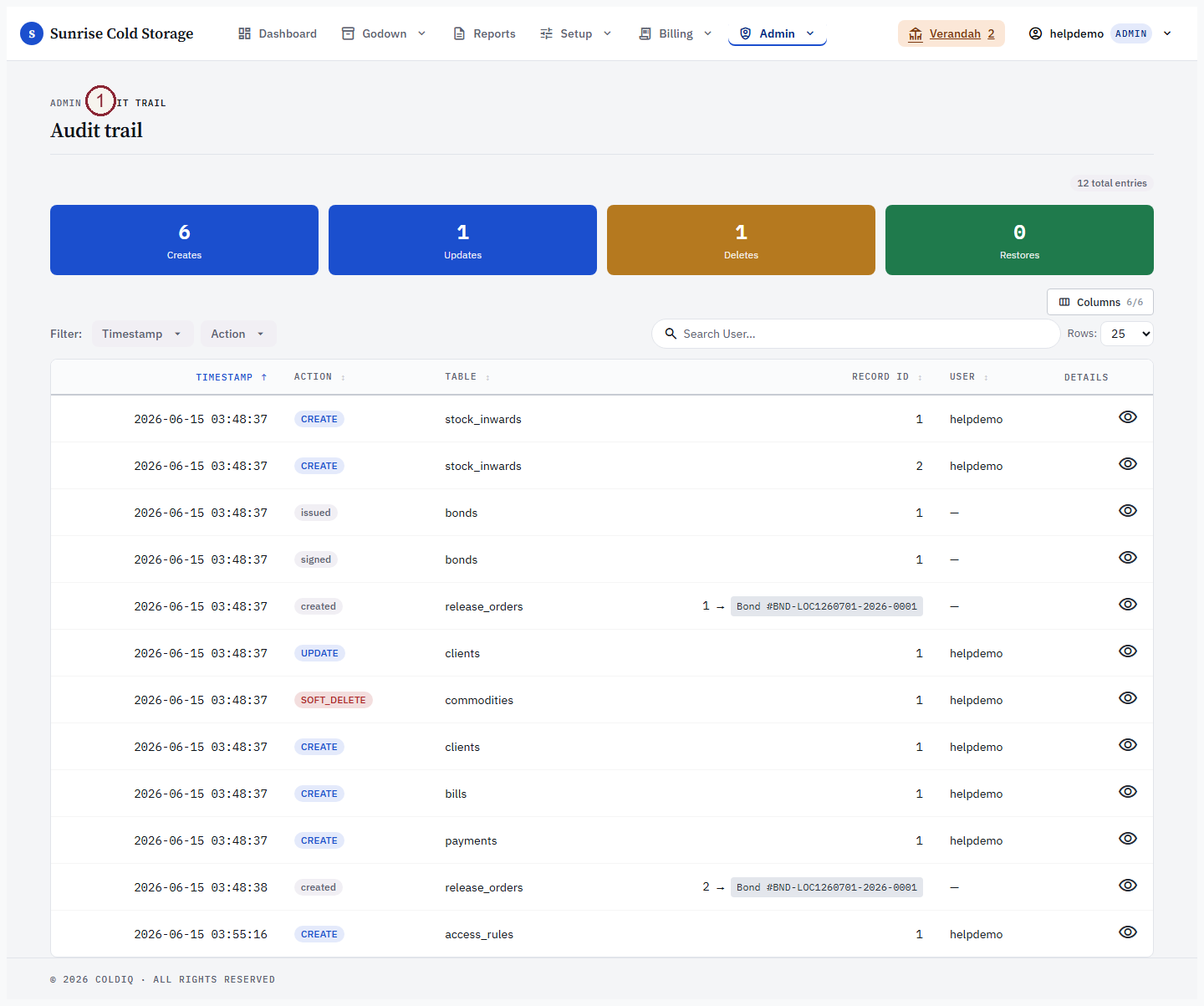
From the top navigation, choose Admin → Audit Trail. The page opens with four summary cards across the top, then loads the most recent entries underneath (you will briefly see "Loading audit trail…"). A pill beside the page title shows the total number of entries on record.

Step 2 — Read the summary cards
The four cards roll up every entry by action type:
- Creates — new records added (
CREATE). - Updates — edits to existing records (
UPDATE). - Deletes — both hard and soft deletes (
DELETE+SOFT_DELETE, combined). Remember the system uses soft deletes for user-facing flows, so most "deletes" are recoverable. - Restores — soft-deleted records brought back (
RESTORE).
These are tenant-wide totals, not filtered by the list below.
Step 3 — Filter and search the list
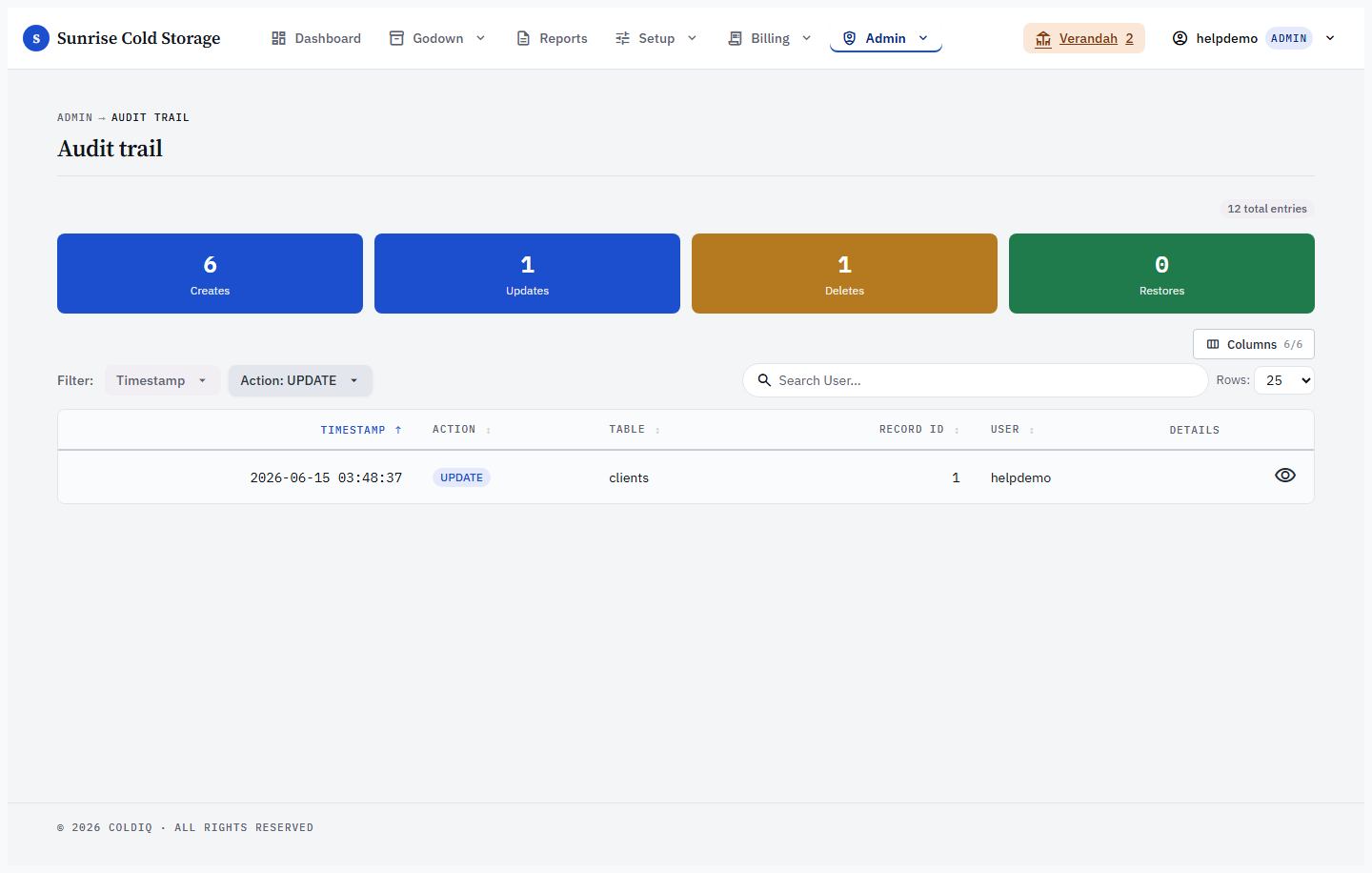
The entry table has columns for Timestamp, Action, Table, Record ID, User, and Details. Narrow it down using the column filters:
- Timestamp — date-range presets: Last 7 days, Last 30 days, Last 90 days, Year to date, All time.
- Action — Create, Update, Delete, Soft Delete, Restore, plus two inward markers: Rate Card Assigned (operator pinned a card at inward) and Mixed Bag — No Card (billing deferred to per-item resolution), and All.
- Table — restrict to a single table (clients, release_orders, bonds, stock, etc.).
- User — searchable; type a username to see only that person's activity.
Action badges are colour-coded so you can scan the list — deletes show in error/red, restores in green, updates in blue. Use Clear to reset all filters.
Step 4 — Open an entry to see the diff
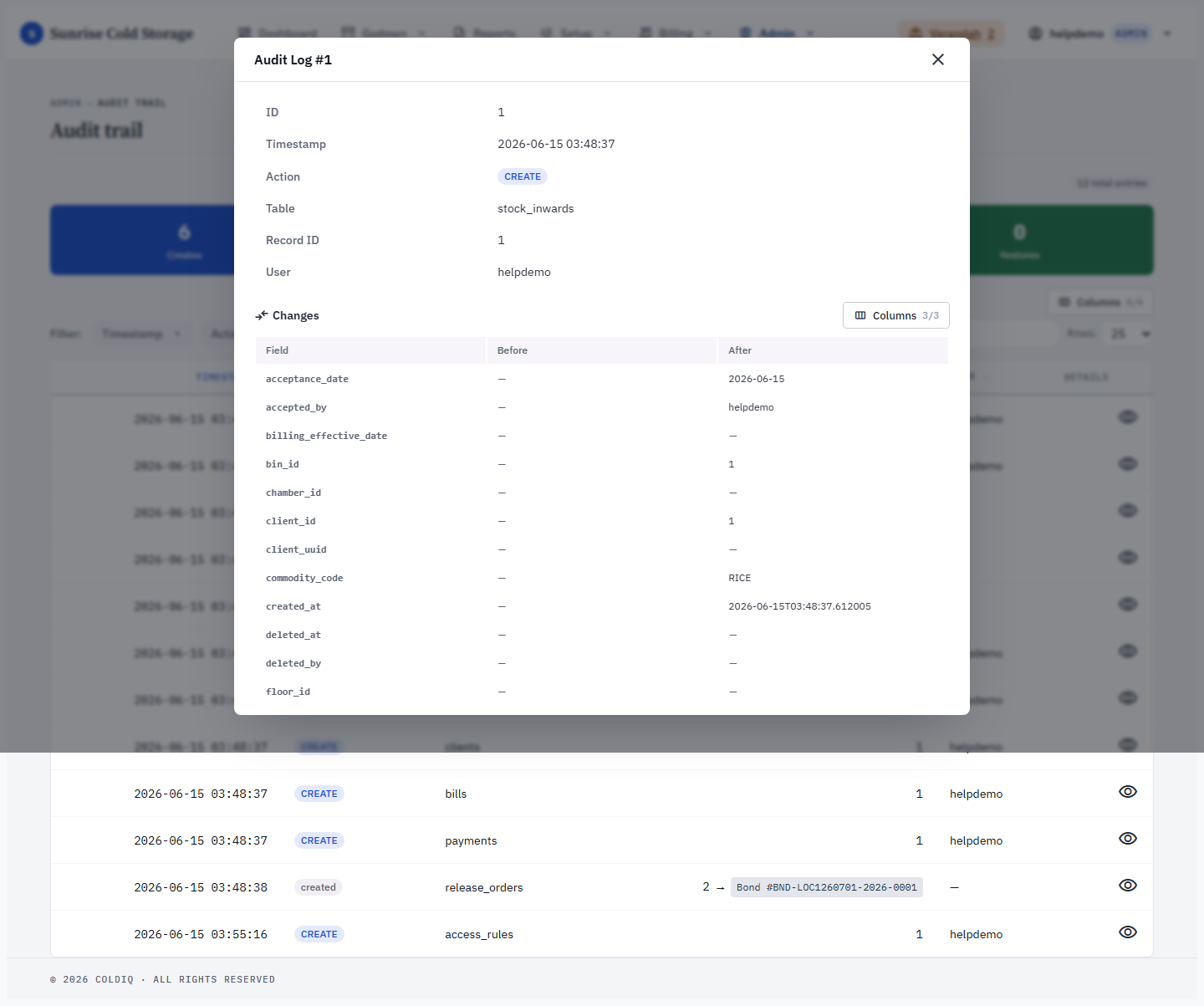
Click the view (eye) icon on any row to open the detail panel. It shows the entry's ID, timestamp, action, table, record ID, and user (with their user ID). Below that is a three-column Field / Before / After diff — changed fields are highlighted so deltas jump out. An unchanged or empty value shows as a dash.
For soft-delete and delete entries, a separate Reason for deletion card surfaces the reason the operator typed when they removed the record. (Create, Update, and Restore entries never show this card.)
Step 5 — Follow the linkback to the source record
When an entry's table is release_orders, the Record ID cell carries an inline → Bond #… link straight to the parent bond's detail page — in both the list and the detail panel. This saves you cross-referencing RO IDs by hand when auditing a release.
If the underlying release order has since been hard-deleted or sits in another tenant, the link degrades gracefully to → Bond #? (deleted) rather than breaking. Rows for any other table (clients, stock, bonds, etc.) show no linkback.
If this breaks
- "Audit Trail" is missing from the Admin menu — the audit trail viewer isn't enabled for your tenant, or you are signed in below Admin. Audit access cannot be delegated to staff or manager roles.
- A row shows "→ Bond #? (deleted)" — the release order behind that entry no longer exists or belongs to a different tenant. The audit entry itself is still valid; only the convenience link can't resolve. This is expected for purged ROs, not a fault.
- "No data snapshot available for this entry." — the entry was written without a before/after payload (some early system events). The header fields (who/when/what) are still authoritative.
- A detail link returns "Audit log not found" / "Log ID required" — the entry ID is stale (page left open across a data reset) or malformed. Reload the page to refresh the list.
Related
See also: Users, Roles.