Internal Transfer relocates stock that is already in storage — from one slot, bin, chamber, or location to another — without an outward and without a new deposit. Use it to consolidate a chamber, vacate a bin for maintenance, or shift a client's lot to another building. The movement is recorded in its own register (Stock → Internal Transfers) with a TRF-YYYY-NNNN number, and every move charges an internal-transfer hamali (handling) fee on a no-GST Handling Charges Receipt.
Open the wizard from Stock → Internal Transfer. It walks three steps: pick the source lines and bags, choose the destination, then review the charges and confirm.
Step 1 — Pick the source and bags
Choose the source location — the dropdowns list locations by their name, not an internal code — then narrow by chamber, floor, bin, slot, client, or Mark if you like. The table lists every lot with bags still in storage there. Each row shows what is movable: bonded bags never move (release the bond first) and a lot with an outward staged on the Verandah is locked until that outward is approved or returned. Tick the lines to move and set the bag count for each — the default is the bond-free remaining.

A few conveniences worth knowing:
- Your ticks stick. Changing a filter re-runs the search but keeps every line you already selected and the bag counts you typed — a row only drops out of your selection if a filter genuinely removes it from view.
- Long lists stay tidy. The source table caps at the first lines and offers Show more — N of M lines to grow it; expanding the list never loses a selection sitting further down.
- Mark filter. When a lot carries a Mark, the Mark dropdown narrows the table to just that mark.
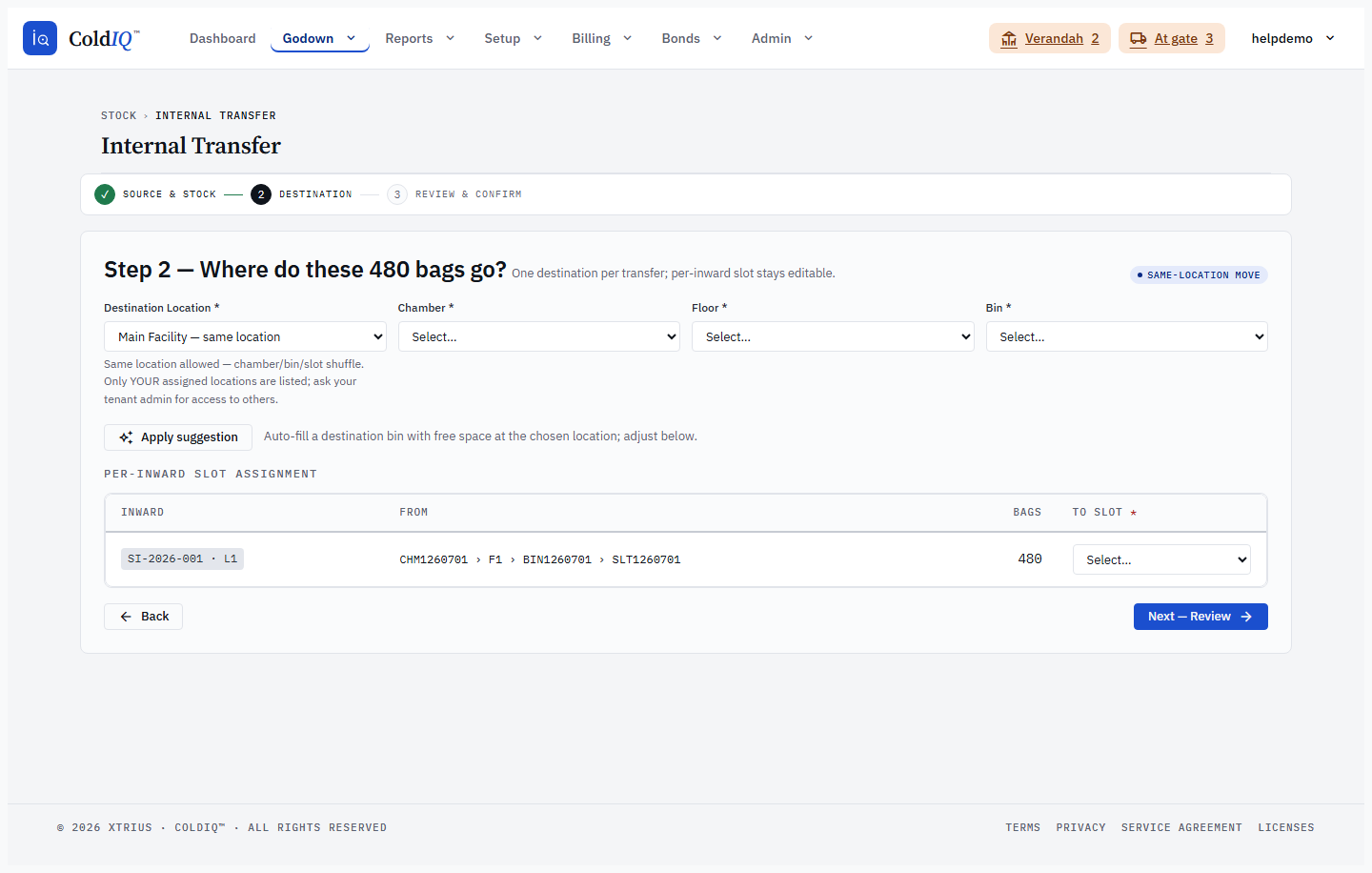
Step 2 — Choose the destination
Pick the destination location, chamber, floor, and bin, then a slot per line. The destination location dropdown, too, shows names (the source location is tagged same location). A move within the same location is a re-slot; a move to a different location is a cross-location transfer — both are supported, and a badge tells you which one you are making.
Rather than hunt for space by hand, press Apply suggestion: it auto-fills a destination chamber/bin (and a slot per line) with free space at the chosen location, using the same placement engine Stock Inward uses. You can adjust anything it picks before moving on. If the destination will stand over capacity after the move, you get a soft acknowledgement (the same policy as inward) — never a hard block.
Step 3 — Review and confirm
The review opens with a summary row — the destination, the hamali total, and Storage Billing: Unchanged — then shows two billing panels:
- Storage rate cards — billing continuity. Every moved lot must stay billable. A lot keeps the storage card, deposit date, and rate that were set at inward — the move never re-prices it. A lot with no card blocks the move; add one inline with Quick Add (needs the rate-card admin permission).
- Internal-transfer hamali. Every transfer charges hamali, whether it is a same-location re-slot or a cross-location move. One Handling Charges Receipt is raised per client (no GST, off-invoice). A missing card blocks the move; add it inline. The hamali Quick Add creates one client-agnostic card for the commodity and bag size, so a single card covers every client — you no longer end up with a duplicate card per client.
If a Quick Add is rejected (a duplicate name, or a bad rate), the error appears right under the button you pressed, not scrolled away at the top of the page — the same is true of the "select at least one line" and confirm-time messages.
Confirm to execute the move atomically: the stock relocates, the TRF- register row is written, and the hamali receipt(s) are raised in one transaction. A movement Slip PDF is available from the register.
What billing actually happens
The two shapes bill differently, and it matters. On the transfer screen itself the only document you raise is the hamali Handling Charges Receipt — the review's "Storage Billing: Unchanged" means you are not re-pricing or re-issuing a storage bill by hand. Storage itself is handled for you:
- Within a location (chamber → chamber, bin → bin, slot → slot): a pure re-slot. Nothing about storage billing changes — the lot keeps its deposit date and storage clock, and there is one storage bill, exactly as before. Only the hamali handling fee is added.
- Across locations: the move is economically an outward at the source and an inward at the destination, so the storage bill is split at the transfer date — this is the two-bill split. The source is billed for the days the bags sat there up to the move (a "source-tail" storage bill, raised automatically), and the system spawns a fresh destination inward whose storage clock resets to the transfer date, so the new location accrues storage from the day the stock arrives. The moved bags keep their client, rate card, and identity — only the storage clock re-anchors, and the lot is never re-priced.
You will not see the source-tail bill or the destination's storage on the transfer screen — they land in the normal billing records (and at auto-close), where each location bills its own share.
Where the transferred stock shows up afterwards
A cross-location transfer creates a new inward for the moved bags at the destination, with its own SI-YYYY-NNN receipt number. You can find that new inward in four places:
- On the success card, straight after you confirm — a Destination inward(s) line links each new
SI-receipt, with its location in brackets. - On the transfer's detail page (open the row from the register) — cross-location legs carry a Destination Inward column linking the new receipt. (The register list shows an inward count; the linked receipt lives on the detail page.)
- In Stock → Inward records — the spawned inward is a normal inward and appears in the inward list like any other.
- In the Multi-Receipt report — the moved lot's row is badged Transferred and shows the originating
TRF-number, so you can see at a glance that the stock was relocated rather than freshly received.
Same-location re-slots do not spawn a new inward (the lot stays put on its original receipt), so there is no destination-inward link for them.
The Counter (reverse) action
Every register row offers a Counter action next to View and Slip. It opens the wizard pre-filled to reverse the original transfer: the original destination is loaded as the new source with the moved bags pre-selected, and the destination is pre-set back to the original source. Review and confirm as usual.
Counter is for a correction — a transfer, once recorded, is never edited or deleted, so undoing one means moving the stock back with a fresh, linked transfer. Two things follow from that:
- Counter does not undo any bills. It moves the stock back; it does not reverse or refund the original transfer's hamali receipt, nor any storage the original move billed. A counter is itself a full transfer, so it charges its own hamali (and, if it crosses locations, splits storage the same way any cross-location move does).
- You cannot counter a counter. The action is hidden on a row that is already a counter-transfer, so a correction cannot be corrected in a loop.
If some of the original bags have since been delivered or moved on, the wizard flags those lines as no longer available and pre-selects only what is still there to send back.
Received vs current bags
A receipt always shows what was received at intake — that number never changes. After a cross-location transfer, the source lot's current bag count is lower (the moved bags left), and the destination lot holds the moved bags under a fresh receipt. So when a lot has been transferred out of, read the receipt's received line as the intake total and the current placement as where the bags are now; the two reconcile (received = what is still here + what was transferred out).
If this breaks
- "No internal-transfer hamali rate card resolves" — the commodity (or bag size) being moved has no hamali card. Add one in the review's Quick Add, or under Manage → Rate Cards, then re-open the review.
- "Moved lot has no storage card" — the lot was never assigned a storage card and none resolves for its dimensions. Add the storage card (Quick Add or Manage → Rate Cards) so it stays billable after the move.
- A line is greyed out / not movable — the bags are bonded (release the bond first) or an outward is staged on the Verandah (approve or return it first).
- "Transfer date is before the source lot was accepted" — a transfer cannot predate the stock it relocates; set the transfer date on or after the lot's acceptance date.
- "Backdated transfers require the backdate permission" — the transfer date is in the past and your role cannot backdate; a manager or admin can, or use today's date.
Related
See also: Stock Inward, Stock Outward, Bonds, Reports.