Stock Inward is the flow for recording goods arriving at the warehouse. Staff enters the receipt; it parks in the Verandah hold area until a Manager approves it; only then does it appear in the live Stock list and contribute to net stock.
Step 1 — Open the Inward page
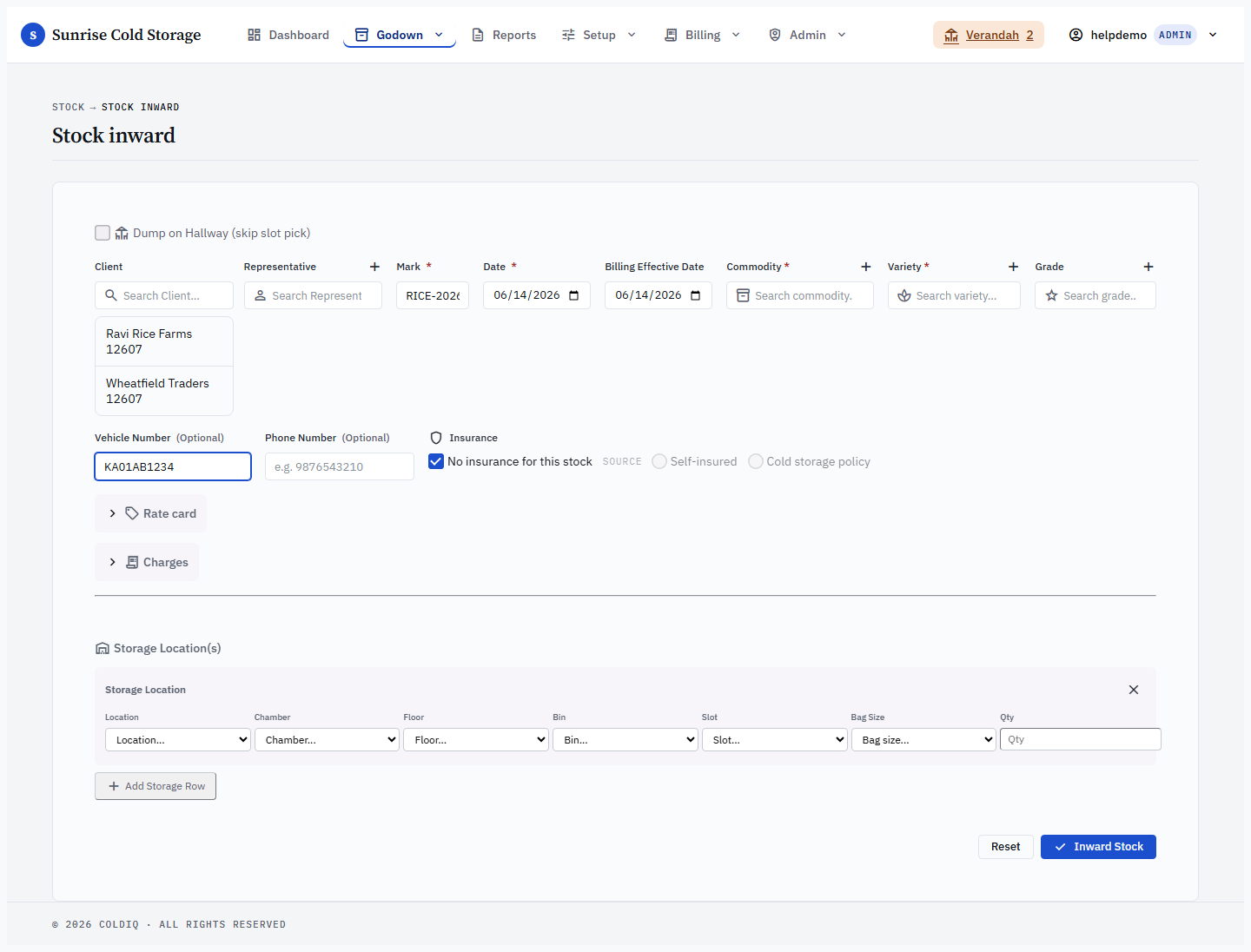
From the top navigation, choose Stock → Inward Stock. The page loads with the Inward form on the left and the most recent inward rows on the right.

Step 2 — Enter client, commodity, and bags
Pick the client from the typeahead (search by name or phone), then the commodity, variety, and grade. These pickers show entries in Title Case and sort case-insensitively, so a client or commodity is where you expect it regardless of how it was originally typed. Enter the bag count and any mark or lot reference your client uses. The form validates as you type — fields outlined in red are missing or invalid.
Step 3 — Capture photo evidence
Use the Photo button to attach a photo of the truck, weighbridge slip, or stack. The photo is optional today but strongly recommended; a future release will gate Manager approval on its presence.
Step 3a — Billing Effective Date (optional)
Next to the deposit Date is an optional Billing Effective Date. This is the day the billable storage clock starts — independent of when the goods physically arrived. Leave it blank (or matching the deposit date) and charges accrue from the deposit date as usual. Set it to a later date and the days between the deposit and that date are free; storage charges only begin to count from the Billing Effective Date.
The lot is still treated as in storage from the moment it is deposited — only the charge accrual moves. You can change the Billing Effective Date later from Stock → View Records (the edit records a reason), but only until the first bill is raised against the lot; after that it is locked. The Billing Effective Date replaces the old rate-card grace-period setting.
Step 3b — Pick a rate card (optional)
Once you have entered the client, commodity, variety, grade, and at least one storage row (so a bag size is known), the Rate card picker appears. It lists the cards that qualify for this deposit, ranked best-match first, each with a projected storage cost (1 / 3 / 6 month).
- The top match is pre-selected. You can pick a different card, or choose "No card — resolve at billing time" to let the system pick the right card automatically when you bill the outward.
- Assigning a card at inward locks in the rate that was quoted to the depositor, even if the calendar moves a different card to the front by delivery time.
- Use "+ Add new rate card" to create a matching card inline without leaving the form.
Mixed bag sizes in one inward
A rate card applies to the whole inward parent, not per row. If your storage rows mix bag sizes, you have three paths:
- Assign a card that has no bag-size pinned — one uniform per-bag rate across every bag size.
- Split the inward into separate parents, one per bag size — each parent picks its own bag-size-specific card (per-size-accurate billing).
- Skip card assignment — the recommended path for mixed bag sizes. The bill resolves per item at outward time, so each bag size gets its own appropriate rate. The picker highlights this option when it detects more than one bag size.
Bag-size-specific cards are hidden when the inward mixes bag sizes (a single card cannot carry different rates per size).
Step 4 — Submit
Press Submit. The row is recorded with state verandah and is not yet visible in the Stock list or in net-stock totals.
Step 5 — Manager approval
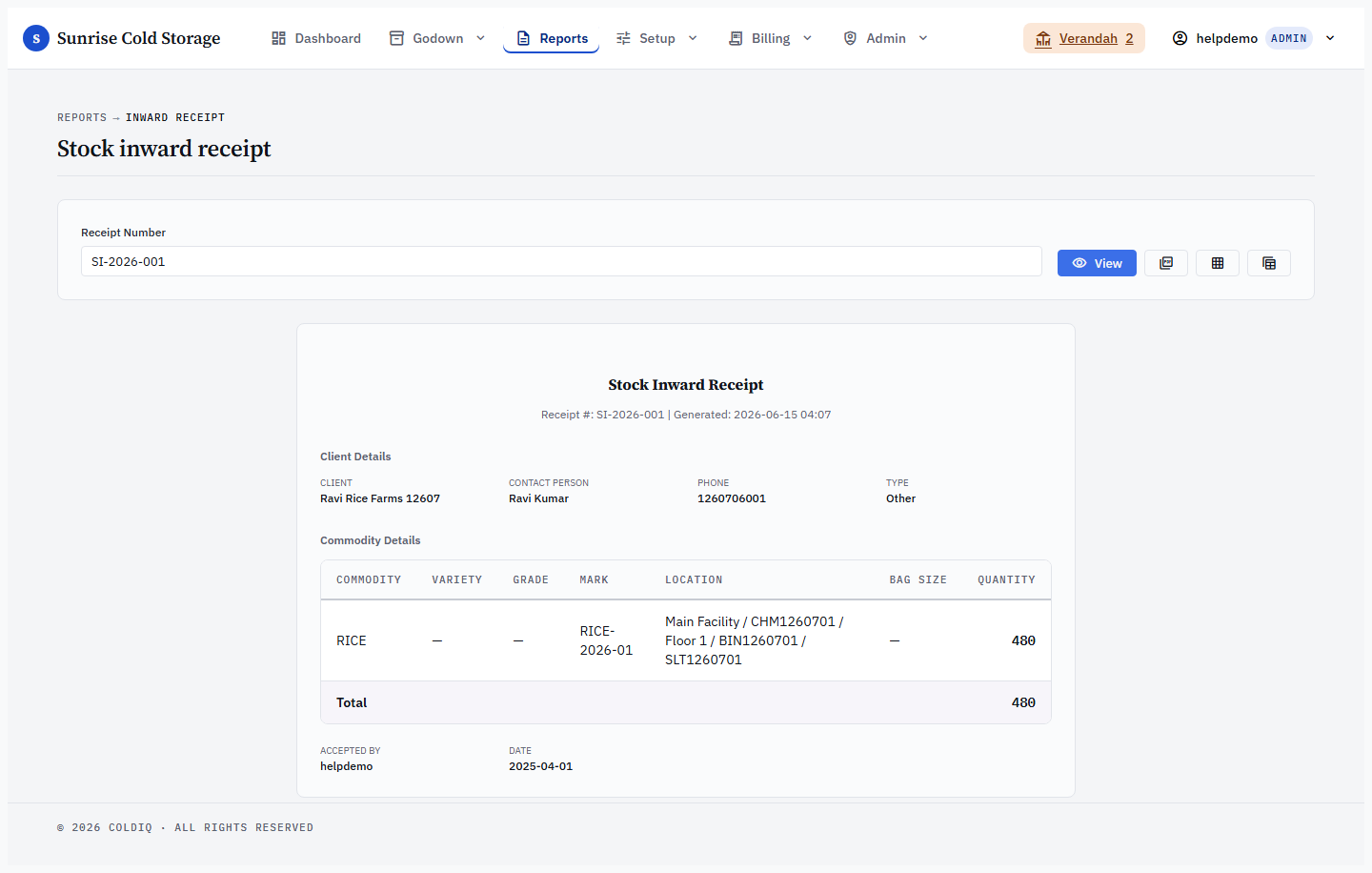
If the receipt was staged on the Verandah (for example via Dump on Hallway, which skips the slot pick), a Manager (or Admin) reviews the pending inward hold from the Verandah pill in the top bar. Approving expands the full Stock Inward form prefilled from the hold; on submit it creates the inward and materialises the row into the Stock list, updating net stock immediately. See Verandah for the full review-and-assign flow.

If this breaks
- "Slot not available" — the chosen location is full. Open Setup → Warehouse Grid to confirm and pick another slot.
- "Client phone already exists" — the client is double-registered. Cancel, open Setup → Clients, and merge or pick the existing client.
- Form scroll resets on validation error — known issue when capturing photo + form error simultaneously. Submit the form first, attach the photo after the row appears in Verandah (Manager can attach on behalf).
Related
See also: Stock Outward, Verandah, Bonds.