A bond is a warehouse receipt the depositor pledges to a bank as collateral against stored stock. Staff issues the bond through a single-page form (numbered sections for depositor, pledge stock, rate, and bank); it sits in Pending sign until a signed copy is photographed back, which flips it to Active. The bags are only reserved once the bond is Active — a Pending-sign bond does not yet lock stock, so until it is signed those bags can still ship out normally. From Active the bond can be Returned (collateral released) or Voided (cancelled). Once active, the bonded bags can leave the warehouse only through a Release Order — bonded stock is the precondition for Release Orders, see Release Orders.
Step 1 — Open the Bonds page
From the top navigation choose Billing → Bonds. The list shows every bond with a state chip and a KPI strip across the top, plus a search box (bond number, client, commodity, or location). Press Issue bond to open the issue form. (Bonds is an optional feature; if it's not enabled you'll see a lock icon and an upgrade prompt.)

Step 2 — Pick the depositor, commodity, and bags
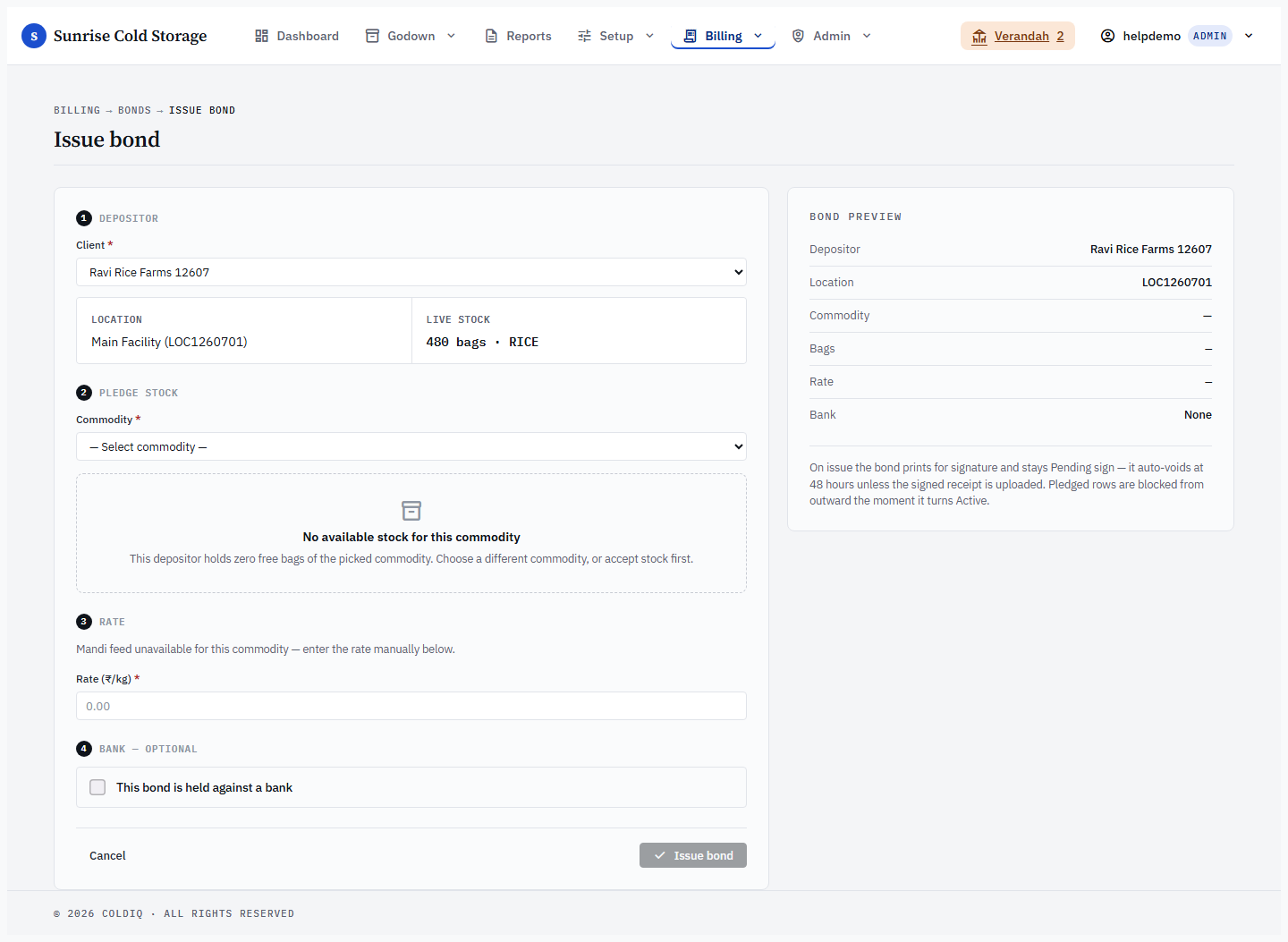
Section 1 (Depositor) is the client picker; when the tenant has more than one location it also exposes a location picker. Section 2 (Pledge stock) is the commodity and lot pledge. As you pick a commodity an overlay chip shows Total / Bonded / Free bags for that client — you can only bond up to the Free count. Pledge bags against specific lot slots in the table; the bag count is the sum of your per-slot pledges (there is no separate bag-count field to type).
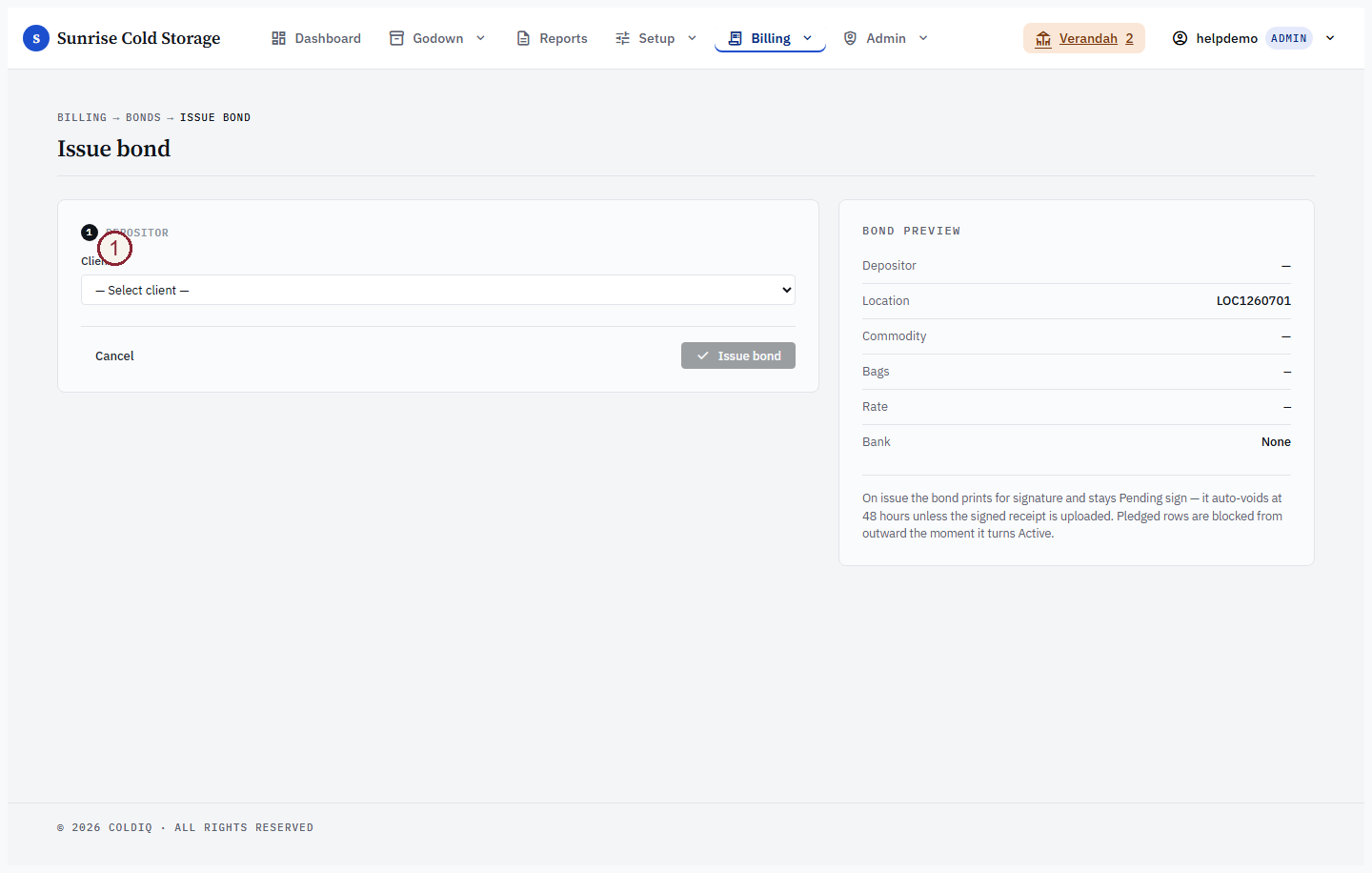
Step 3 — Set the market rate and bank reference
Section 3 (Rate) captures the market rate per kg for the pledged stock, entered when issuing the bond. Section 4 (Bank — optional) captures optional bank name and reference number (internal only — never printed on the bond paper). Tick This bond is held against a bank to reveal the two fields.
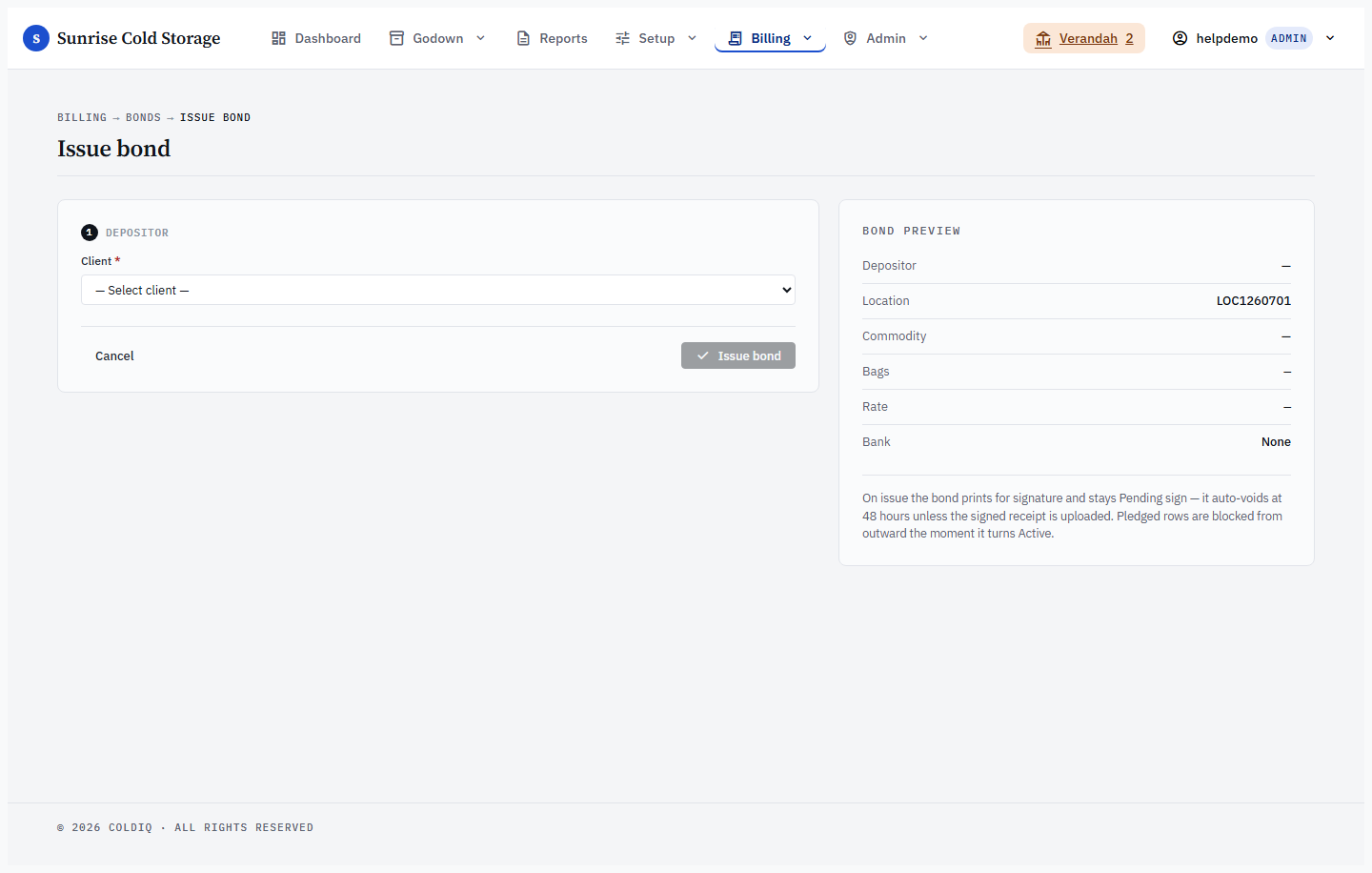
Step 4 — Issue the bond
A live preview rail beside the form mirrors your entries — depositor, location, commodity, bags, rate, and bank — as you fill them in. Press Issue bond to create the bond. It is recorded in state Pending sign, assigned a bond number in the form BND-{LOCATION}-{YEAR}-{NNNN} (e.g. BND-LCS-2026-0042), and its PDF is rendered ready to print.
Step 5 — Print, sign, and activate
On the success panel, Download PDF or Print the bond paper, get it physically signed, then drop the signed copy into the photo zone (PDF, Word, or image, up to 10 MB — a phone-camera scan works) and press Activate bond. Uploading the signed photo moves the bond from Pending sign to Active. You can also choose Finish later to leave the bond Pending sign and activate it from its detail page. A bond left unsigned past the expiry window (48 hours by default) is auto-voided by a nightly job.
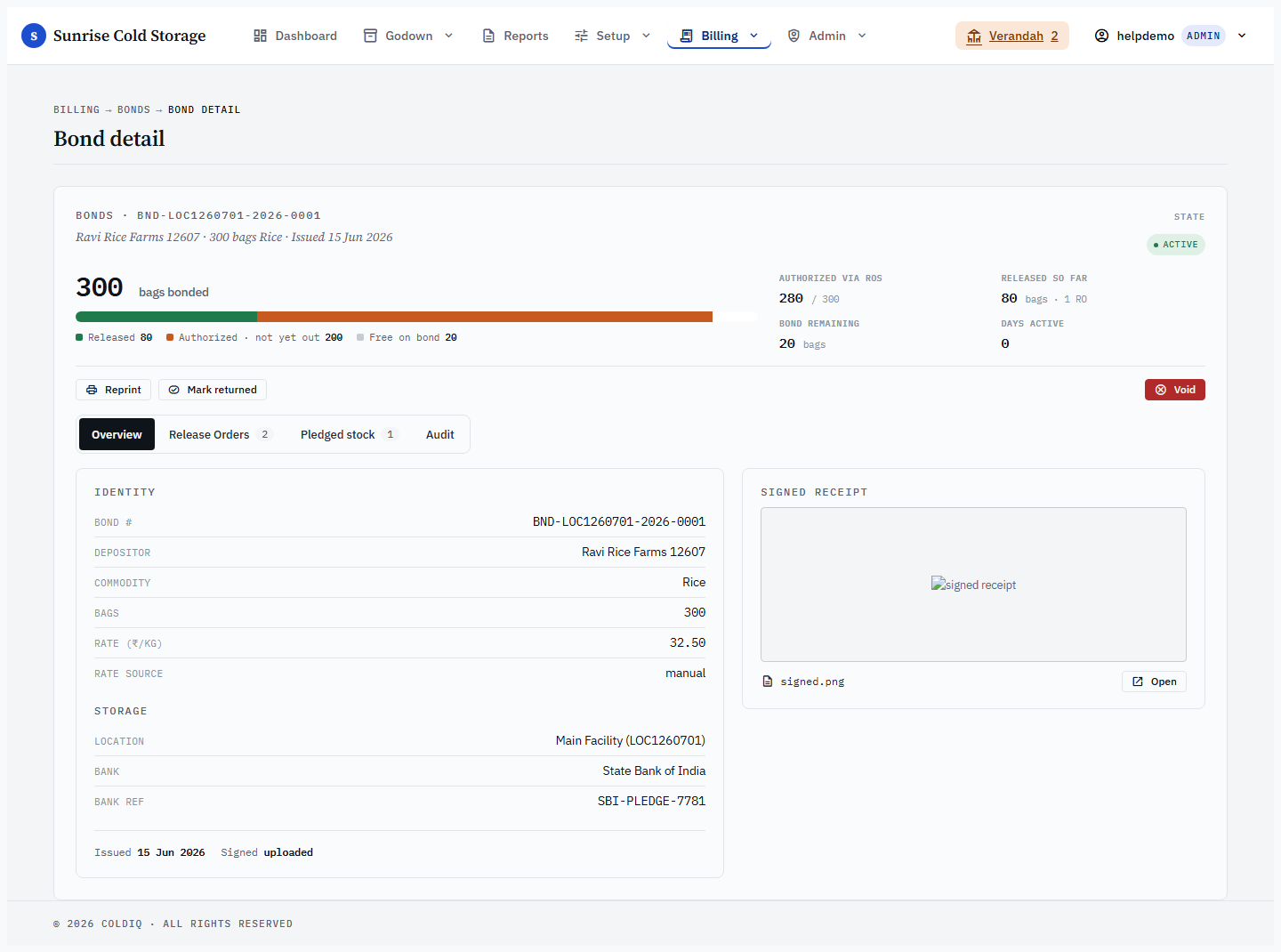
Step 6 — Void or return
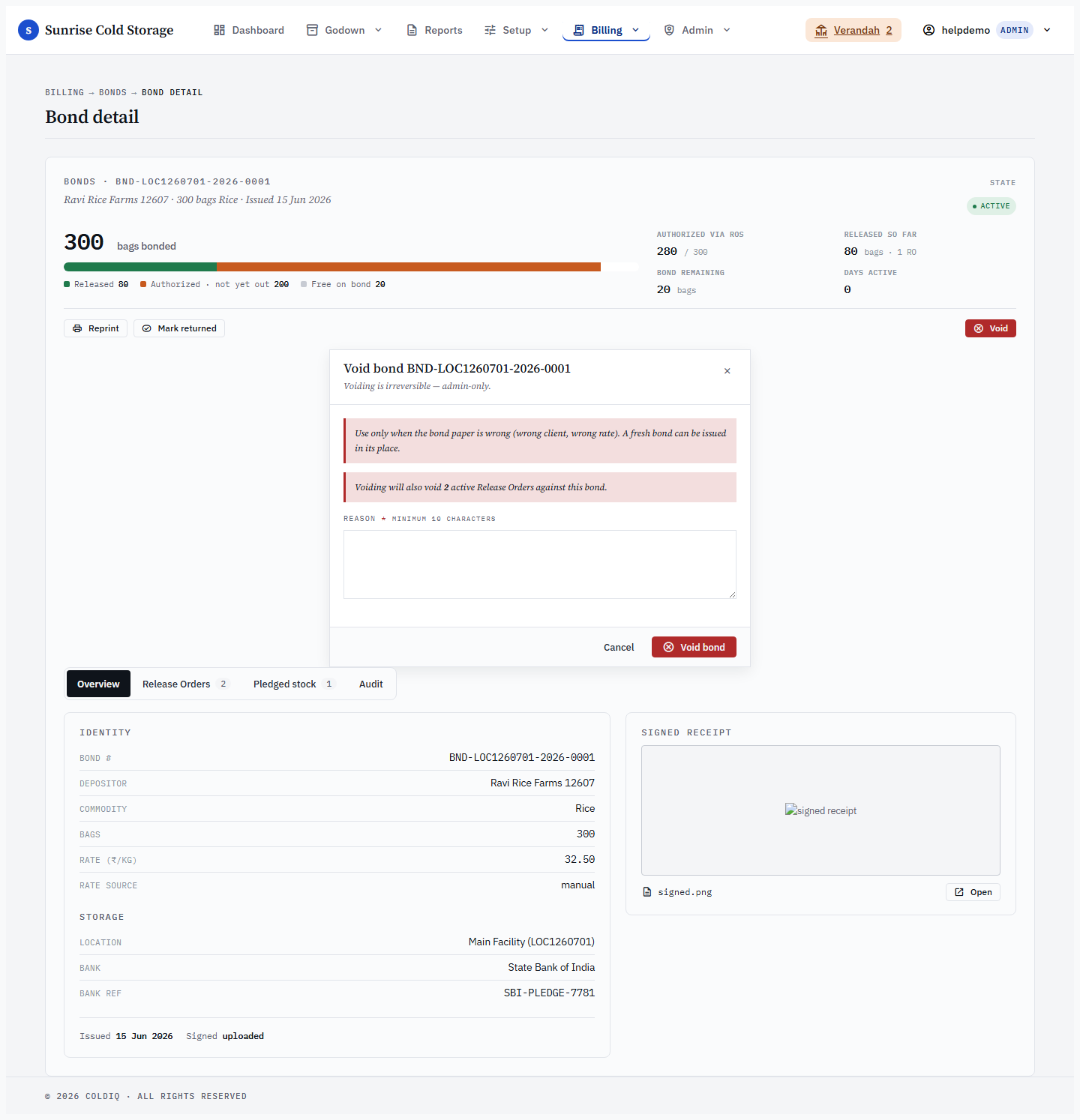
- Void cancels a bond (from Pending sign or Active). It is admin-only, needs a reason of at least 10 characters, and cascades — any non-terminal Release Order (pending approval or active) against the bond is voided too.
- Return marks an Active bond as Returned once the collateral is released; it requires a photo of the returned receipt and likewise cascades its open Release Orders to voided. Consumed Release Orders (real released bags) are left untouched.
If this breaks
- "N bonded bags blocked; max releasable: M" — you tried to pledge more bags than are free. The difference is already locked by other bonds; reduce the bag count to the Free figure on the overlay chip.
- "Pledge total (X) must equal bond bag count (Y)." — the per-slot pledges in Step 2 do not sum to the bag count. Adjust the slot rows until they match.
- "Photo is required" / "Upload exceeds 10MB" — the signed-receipt upload is missing or too large. Re-scan at a smaller size; activation cannot proceed without the photo.
- "Reason must be at least 10 characters" — the void reason is too short. Voids are audited; give a real reason.
- "Cannot mark signed from state=…" / "Cannot void from state=…" — the bond has already moved on (already active, returned, voided, or released). Refresh the detail page to see its current state.
- "PDF preview unavailable" — the PDF renderer is missing on the server. The bond is still issued; reprint from the bond detail page once the renderer is restored.
Related
See also: Release Orders, Stock Inward, Stock Outward.