The Verandah is the holding area between your gate and your stored inventory. Goods that have physically arrived (or are committed to leave) can park as a hold on the Verandah before a manager commits them to a slot or to a truck. A hold is custody-tracked but it is not live stock: pending bags never count toward net stock, claim a slot, or raise a bill until someone approves them. Nothing in your stock records is written until the approval gate fires — so a rejected arrival or an abandoned pickup leaves no ghost rows.
The page lives at Verandah in the top navigation (its pending count also shows as a pill in the top bar). It is per location: you see the holds for the locations you have access to. Four stat cards across the top double as the view switcher — Inward Pending, Inward Rejected, Outward Pending, and Outward Returned — each showing its count and bag total.

The inward flow — arrivals waiting for a slot
Stage the hold
An inward hold is created from the Stock → Inward Stock form. Fill in the client, commodity, quantity and (optionally) variety, grade and insurance as usual, then tick "Dump on Hallway (skip slot pick)" before submitting instead of assigning a slot. The bags are recorded as a pending hold under a Verandah reference (a VRD-… code) and you get a confirmation telling you to assign them to a slot from Verandah → Inward Pending. No slot is claimed and net stock is unchanged.
Review the pending holds
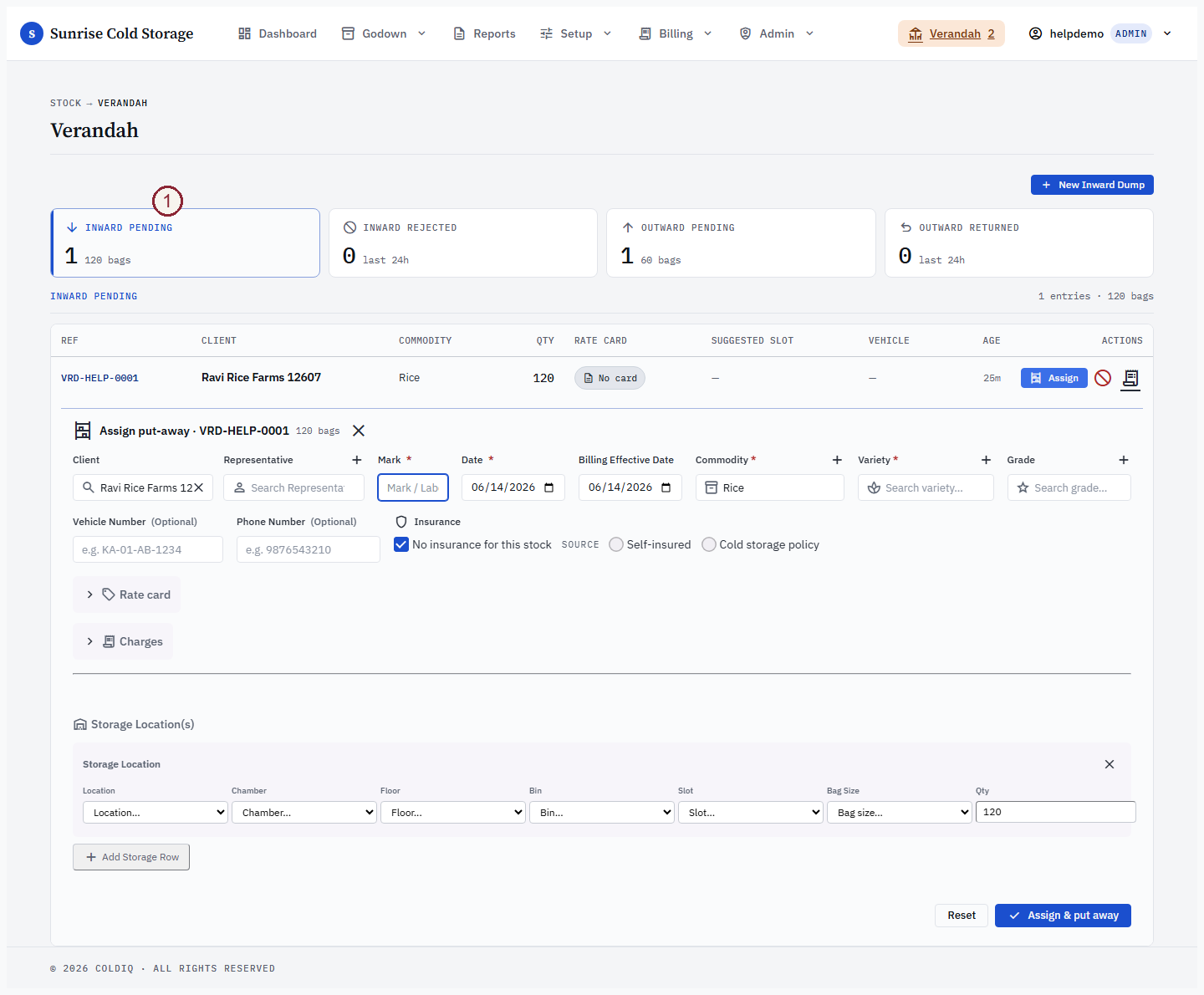
Open the Verandah page and stay on Inward Pending. Each row shows the reference, client, commodity / variety / grade, bag count, the rate-card the hold would resolve to, a suggested put-away slot, and how long the hold has been waiting. This is the manager's review queue.
Assign — put the bags away
Press Assign on a row. The full Stock Inward form expands inline beneath that row, prefilled from the hold — the client, commodity, variety, grade, bag count and insurance choice are already filled in, exactly as the depositor was recorded at the gate. You finish the put-away the same way you would a direct inward:
- Choose where the bags go — pick the location, chamber, floor, bin and slot. Need to split the lot across several slots? Add storage rows just as you would on the Inward page; the per-row bag counts must add up to the hold's bag total.
- Set the Billing Effective Date and the rate card if you want to pin them, exactly as on a normal inward (leave them as they are to resolve at billing time).
Press Assign & put away. In one atomic step the system writes the real inward (one receipt spanning your chosen slots), carries over the insurance choice captured on the hold, and resolves the hold. The bags now appear in Stock → View Records and count toward net stock, and you get the stock receipt number with a link to its PDF. Because the create and the hold-resolve happen together, a half-assigned hold can never be left behind.
Reject an inward hold
If the arrival should not be stored — wrong commodity, customer no-show, damaged bags — press Reject, type a reason (required), and confirm. The bags leave the Verandah and no stock row is created. There is no automatic handling-fee bill on a rejection; if you need to charge for the handling, raise that charge manually from Billing. The rejection stays visible under Inward Rejected for 24 hours.
The outward flow — pickups waiting for a truck
Stage the pickup
An outward hold is created from the Stock → Outward Stock form. Pick the client, select the source rows and bag counts as normal, then tick "Stage on Verandah (truck not arrived; bags wait for pickup)" before submitting. One hold is opened per selected row. The bags stay held in their source slot — the slot is not vacated, capacity is not freed, and no delivery is recorded — until a manager approves the pickup. Because nothing ships yet, no vehicle or delivered-to details are entered at staging. Note that the Verandah approval step does not collect them either: a Verandah-staged delivery is recorded with its client, commodity, bags and delivery date, but without vehicle or delivered-to. If those accountability details must be on the delivery record, deliver directly from Stock → Outward rather than staging.
Approve & bill
Open the Verandah page and switch to Outward Pending. Each row shows the reference, client, commodity, bags, and the source slot the bags are held in. When the truck arrives, press Approve. A confirmation modal shows an indicative bill preview — bags, days stored, rate, storage cost, GST and total — projected read-only from the hold and its source lot. (If no rate card matches yet, the modal shows a "computed at approval" note instead of numbers; the preview is a guide, and the real charge is computed at approval.)
Confirm with Approve & bill. In one atomic step the system writes the delivery receipt, draws the bags out of their source slot (vacating it once the lot is fully emptied), and auto-bills the outward against the client's rate card. You get the delivery receipt number and, when a card matched, the bill number. If no card matches, the delivery still completes and you get a "configure a rate card" warning instead of a bill — re-bill the receipt later once a card exists.

Return an outward hold to its slot
If the pickup falls through, press Reject on the outward row and give a reason. The bags are returned to their slot and the customer is not charged for a delivery — nothing left the warehouse. The return stays visible under Outward Returned for 24 hours.
Insurance and the rate card on a hold
Insurance is captured on the inward when you stage the hold, travels with the hold, and is carried into the real inward at the moment you Assign — so an insured lot is billed the same whether you go direct or via the Verandah. On the outward side, the indicative preview reads the lot's insurance so the projected charge matches what approval will bill.
Each pending inward row shows a rate-card chip — a preview of the card that billing would resolve for that hold on its arrival date (a success-tone chip with the card name, or a grey No card chip when nothing matches yet). It is only a preview; the card is actually pinned when you Assign, where the rate card is set on the prefilled inward form exactly like a direct inward. The billable storage clock that drives the day count uses the lot's Billing Effective Date when one is set, otherwise the deposit (acceptance) date — assigning from the Verandah does not change that rule.
If this breaks
- The Assign form rejects your placement — the inline form runs the same validations as a direct inward: the storage rows must add up to the hold's bag count, and every slot must have enough free capacity. Fix the highlighted rows and submit again.
- "Hold is not pending" — the hold was already assigned, rejected or returned (often by another user). Refresh the page; the row will have moved to its resolved view.
- "Hold N source item missing" on an outward approval — the source lot the hold pointed at has changed or been exhausted since the hold was staged. Return the hold to clear it, then re-stage the pickup from current stock under Stock → Outward Stock.
- No bill after an outward approval — the delivery succeeded but no rate card matched. The banner warns you to configure a card; create a matching storage card under Setup → Rate Cards, then re-bill the receipt.
- A reject is refused — a reason is mandatory. Type at least a few words explaining why, then confirm.
Related
See also: Stock Inward, Stock Outward, Billing cycle.