Auto-Close is the year-end behaviour that bills every lot still sitting in storage when your fiscal year turns over. It is mostly automatic: a daily cron fires on the boundary date you configure and, for each open lot, raises a storage bill for the period. You do not click through a wizard to make it happen — you configure it once, preview what it will bill, dismiss exceptions, and read the results in the log.
Auto-Close now lives under the Billing module. Open it from the top navigation at Billing → Auto-close preview and Billing → Auto-close log — the two pages moved here from the Admin menu so accountants (not just admins) can reach them. Auto-Close billing is an optional feature: when it isn't enabled the nav entry carries a lock icon and an upgrade prompt instead of opening the page.
Step 1 — Set your fiscal-year-end
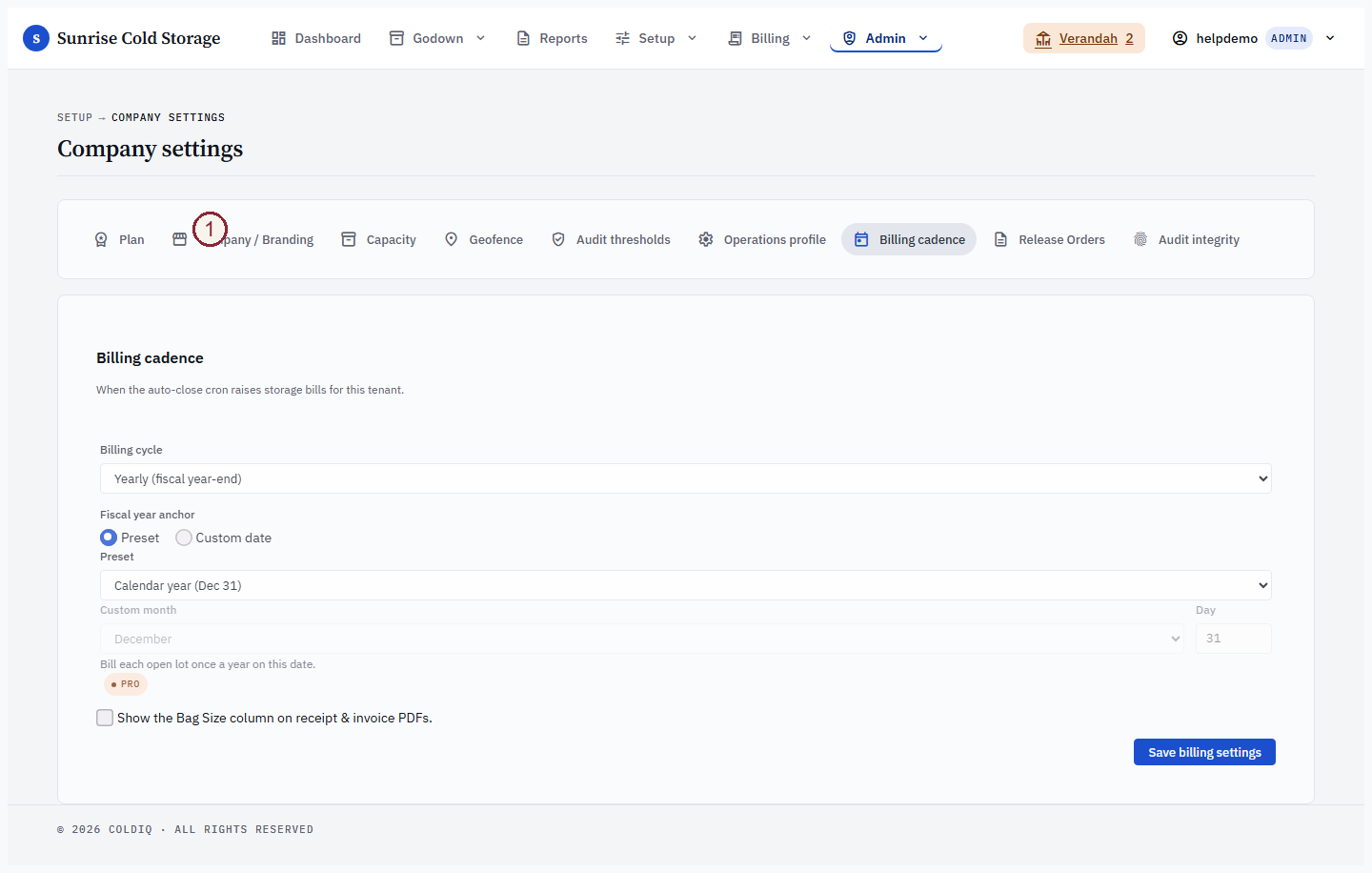
From the top navigation, choose Setup → Admin Settings → Billing. The Fiscal year anchor controls the boundary date the cron watches. Pick a preset — 12-31 closes on the calendar year, 03-31 on the Indian financial year — or choose Custom date for any other month and day (Feb 29 is not supported). This single setting drives when Auto-Close fires for your tenant.
Step 2 — Preview the open lots
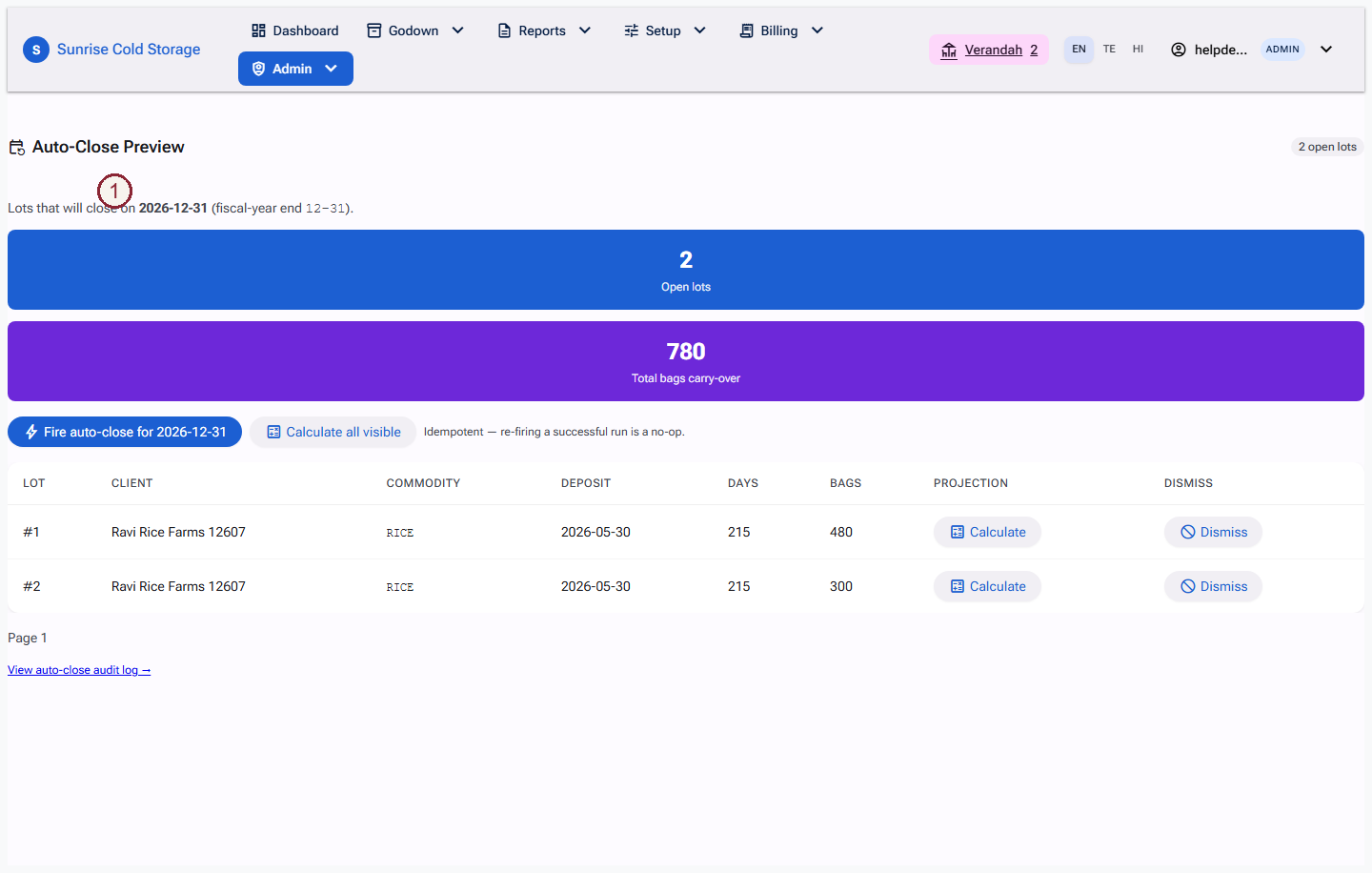
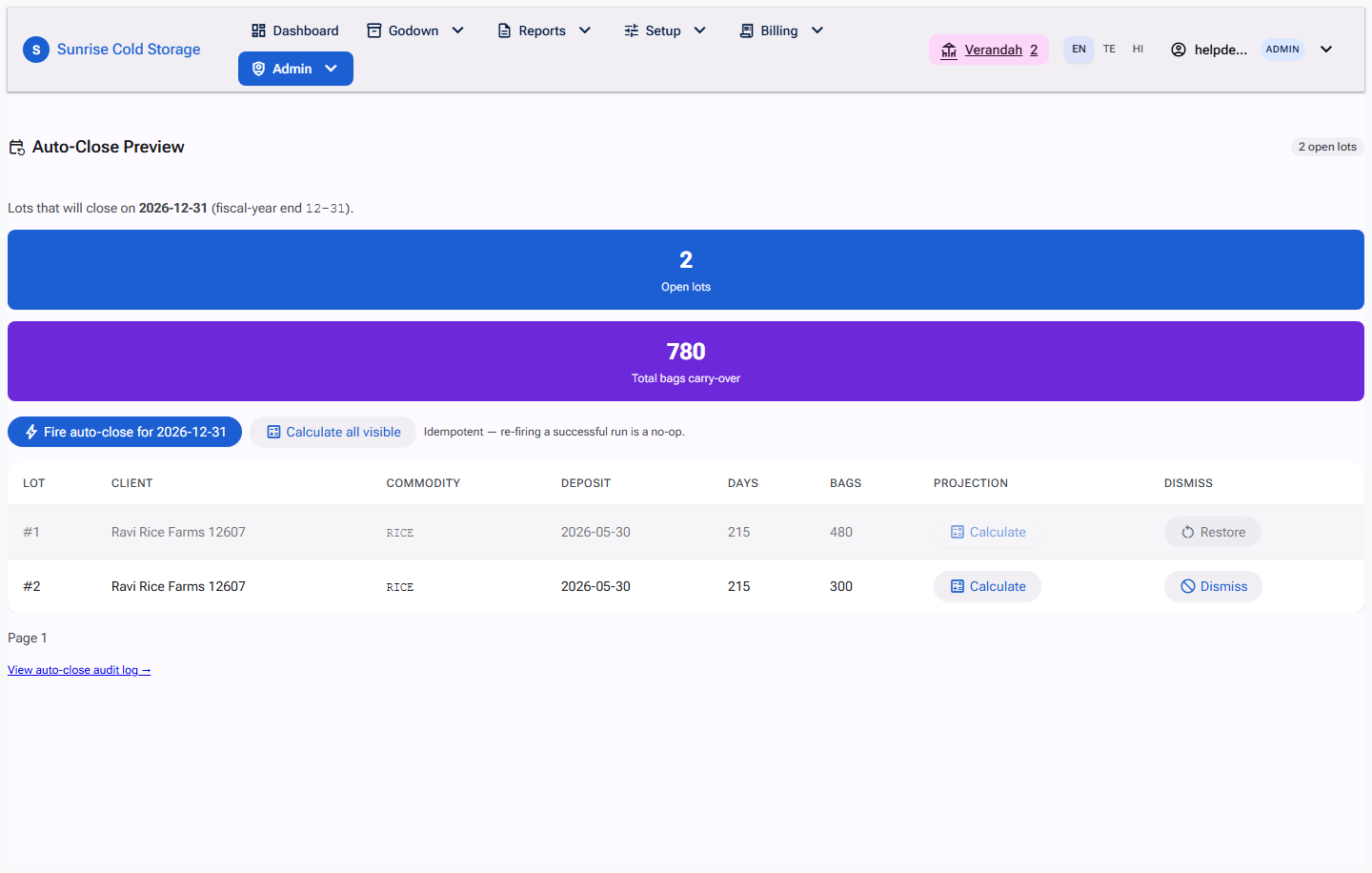
Before the boundary arrives, open Billing → Auto-close preview. A bare visit shows the summary KPI tiles and the filter bar, with the lots table held back behind a prompt ("Select filters above and press Filter to view open inwards") — the 50-row table is the heaviest part of the page, so it renders only after you submit the filter bar (or follow a pagination link). Filter by date range, location, client, commodity, or Missing rate card, then press Filter to list the open inwards, paged 50 at a time, with a running total of lots and bags. Each row carries a Rate card column — a badge showing whether a storage card resolves for that lot at the boundary — alongside the deposit date, days, and bags. Even once the table is shown, projected bills are still not computed up front (at thousands of open lots that would time out); you fetch them per row in the next step.
Step 2a — Read the rate card a lot matched (RateCard Details)
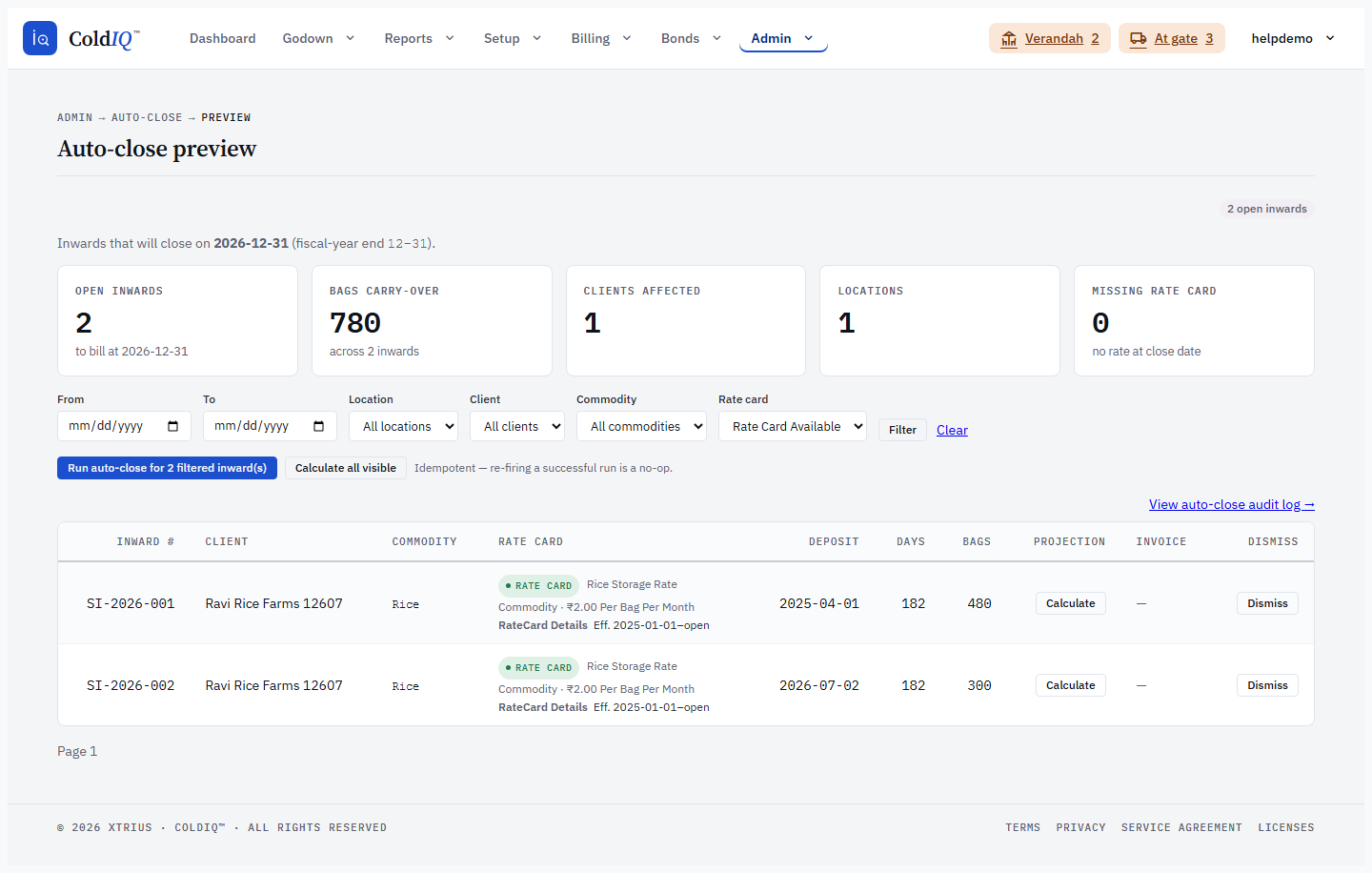
When a storage card resolves for a lot, the Rate card column shows a green badge, the card's name, and an always-visible Level · ₹rate subtext, so you can read at a glance which card will price the lot. Directly beneath it, the RateCard Details line surfaces the matched card's Effective window inline — a compact Eff. effective-from–effective-to (or open when there is no end date) — alongside the Level and rate already shown. Everything reads straight in the row, so you can confirm the projection will price the lot the way you expect before the cron fires, with nothing to click open. Lots with no resolvable card show a yellow No rate card badge and have no detail to read; fix those before the boundary.
Step 3 — Calculate the projected bill per lot
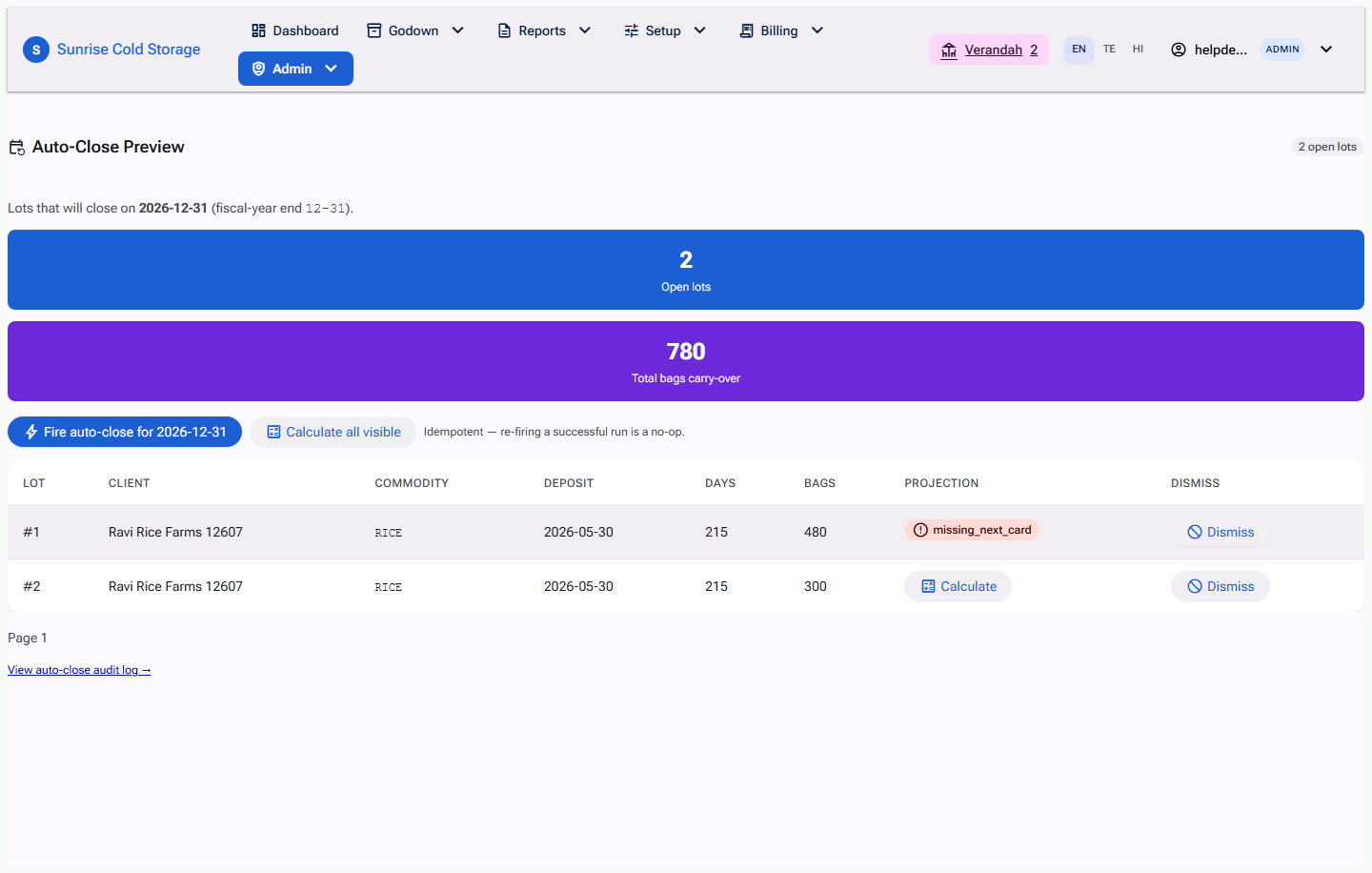
Each row has a Calculate action. Pressing it runs the billing walker for that one lot against the boundary and shows the projected close-bill total in the row. The close-bill accrues from the lot's Billing Effective Date when one is set, otherwise from its acceptance (deposit) date, through the boundary — the same billing start used for delivery bills. If a lot cannot be priced, the row shows the reason instead of a figure — common values are no_rate_card (no rate card resolves), no_open_qty, or no_periods (the lot is already billed through the boundary). Fix the underlying data (usually assign a rate card) before the boundary so the lot bills cleanly.
Step 4 — Dismiss lots that should not be billed
If a lot should be skipped this cycle, use the Dismiss toggle on its row. Dismissing is per (lot, boundary) and reversible — toggle again to re-include it. Dismissed lots are passed to the engine and excluded from billing when the cron runs.
Step 5 — The cron fires (or run it manually)
On the morning after the boundary (the cron runs daily at 01:00 IST and acts on the previous day), the engine processes every open, non-dismissed lot for tenants whose fiscal-year-end matches. For each lot it raises a storage Bill for the period. The run is idempotent — re-firing the same boundary skips lots already closed, so nothing is double-billed.
If you need to close early or re-run after fixing data, use the Run now action on the Preview page. It fires the engine for the chosen boundary immediately and reuses the same idempotency guard.
Step 6 — Read the log and chase the bills
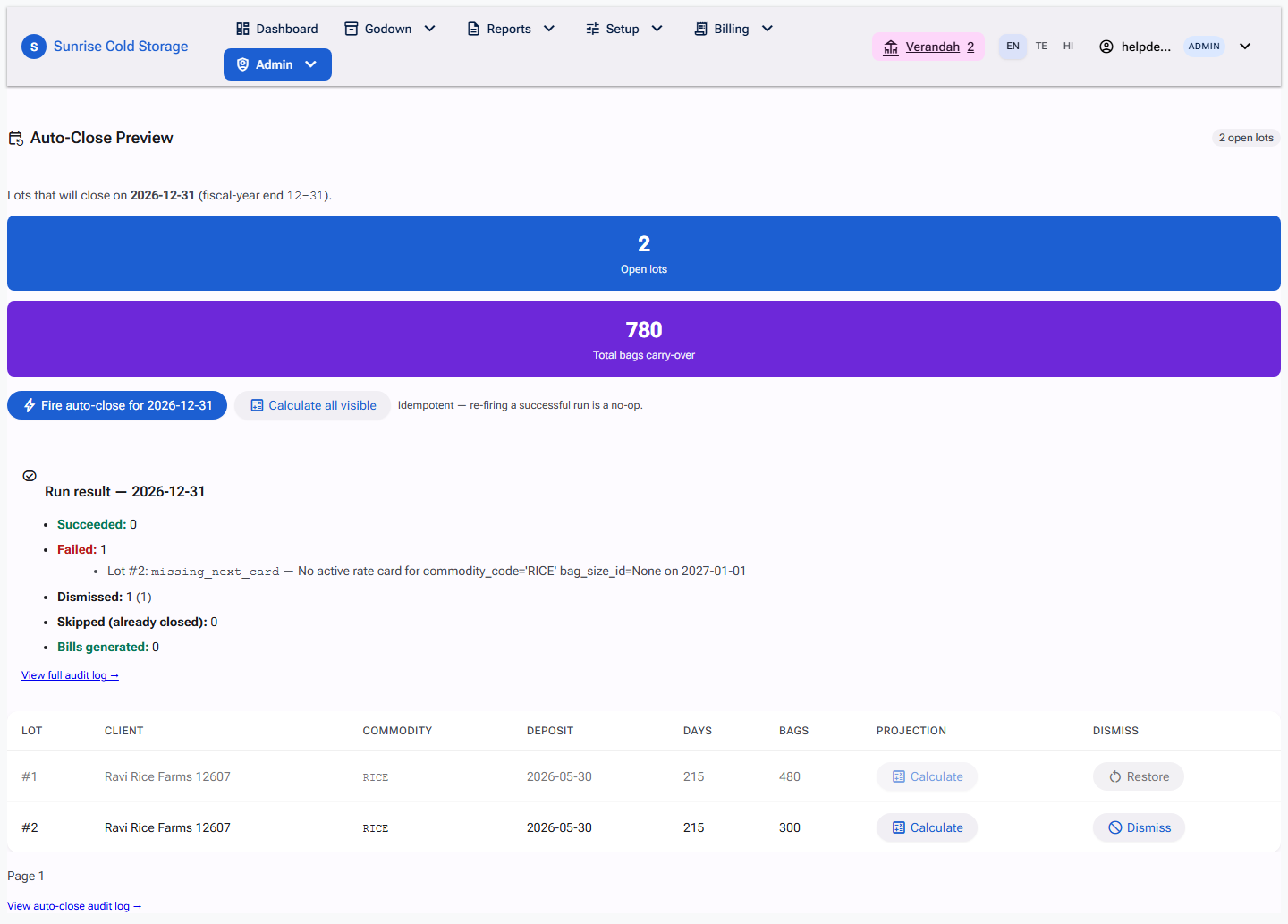
Open Billing → Auto-close log to see each run with its outcome counts: succeeded, failed, dismissed, skipped (already closed), bills created, and bills failed. The run result links bills you can click through to chase payment on the normal billing surface. Lots under bills failed closed correctly but their bill did not persist — raise those manually via Billing against the lot.

If this breaks
- Lot shows
no_rate_cardin the projection — no rate card resolves for that lot at the boundary. Assign a card on the inward (or create one) before the cron fires, or the lot will land under bills failed with no bill. - A lot was billed that should not have been — it was not dismissed before the boundary. Dismissals only apply to the matching
(lot, boundary); dismissing after the run does nothing for that cycle. Void the bill via Billing and dismiss before the next boundary. - Auto-Close did not run — confirm the Fiscal year anchor in Admin Settings matches the date you expected; the cron only fires for tenants whose boundary fell on the previous day. Use Run now on the Preview page to fire it for the correct boundary.
- A lot appears under "bills failed" — the close succeeded but bill creation raised. Raise the storage bill manually via Billing against that lot; do not re-run the whole boundary.
- The Auto-close menu entries are locked (or missing) — they now live under Billing → Auto-close preview / Auto-close log, not the old Admin menu. If the entry shows a lock icon and an upgrade prompt, Auto-Close billing is an optional feature that isn't enabled for your tenant; ask your administrator to enable it, or contact us. Accountants who could not see the links under Admin should now find them under Billing.
- No RateCard Details on a row — the inline detail only appears when a storage card actually resolves for that lot (green Rate card badge). A row showing the yellow No rate card badge has no card to read; assign one before the boundary.
Related
See also: Billing Cycle, Stock Outward, Reports.