The Billing Cycle is how stored stock turns into money owed. A storage bill is created automatically the moment an outward (delivery) is completed — the system resolves the right rate card, prices the storage days, and itemises the charges. The Accountant then reviews the bill and records payments against it until it settles.
Step 1 — Stock is delivered
Billing is driven by delivery, not by a calendar run. When Staff complete an outward (see Stock Outward), the system immediately tries to bill it. There is no separate "generate bills" button for storage charges — the bill rides on the delivery.

Step 2 — The bill is generated and the rate card resolves
For each delivered item the engine prices storage by walking the rate-card rate over the days the bags were billable. The billable clock starts at the lot's Billing Effective Date when one is set, otherwise at the acceptance (deposit) date, and runs to the delivery date. Rate-card resolution follows a fixed order:
- If a rate card was pinned at inward time, that card is honoured directly — the rate quoted to the depositor wins even if a different card has since moved to the front.
- Otherwise the scored resolver picks the best-matching active card for that day, ranking by specificity: client > commodity > variety > grade > bag size > the default card. The most-specific qualifying card whose effective window covers the delivery date wins.
Storage charges and handling (hamali / verandah labour) are split: storage + insurance land on the Bill (with GST); handling labour goes onto a separate Handling Charges Receipt (no GST, the cold storage is not the payee). A new bill opens in state unpaid with a number like INV-2026-001.
Billing Effective Date — when the charge clock starts
The Billing Effective Date (BED) is an optional per-lot date that controls when storage charges start accruing, separately from the operator's deposit date. The billing start the engine uses is the BED when set, otherwise the acceptance (deposit) date. The lot is still physically in storage — and counts as open — from the moment it is deposited; the BED only changes the day-count used for money.
Use it whenever the storage clock should begin later than the physical deposit — most commonly to grant free or grace days: set the BED a few days after the deposit and those days are not charged. Leave it blank and storage simply bills from the acceptance date.
BED is set on the Stock Inward form as an optional field, and can be edited later on View Records (the edit records a required reason) — but only until the first bill is raised against the lot. Once any bill exists for the lot the field is locked and changing it is rejected. BED replaces the old rate-card grace-period mechanism.
Step 3 — Review the bill
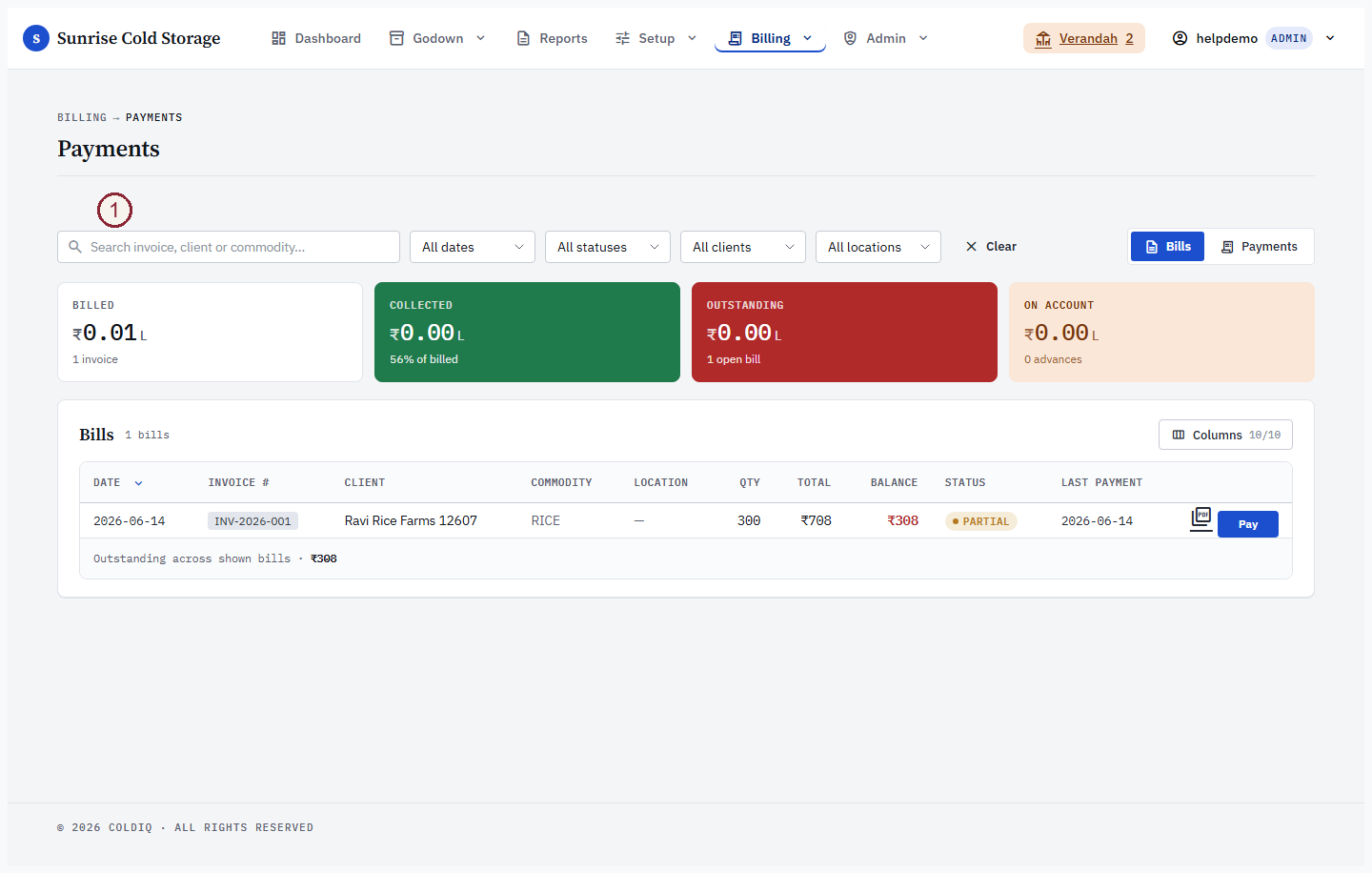
Open Billing → Dashboard for the cockpit (outstanding, aging, top debtors) or Billing → Payments for the bill list. Click a bill to see its lines: one storage line per delivered slot, plus any handling and insurance lines, the rate card applied, days stored, and the GST split.
Step 4 — Record a payment
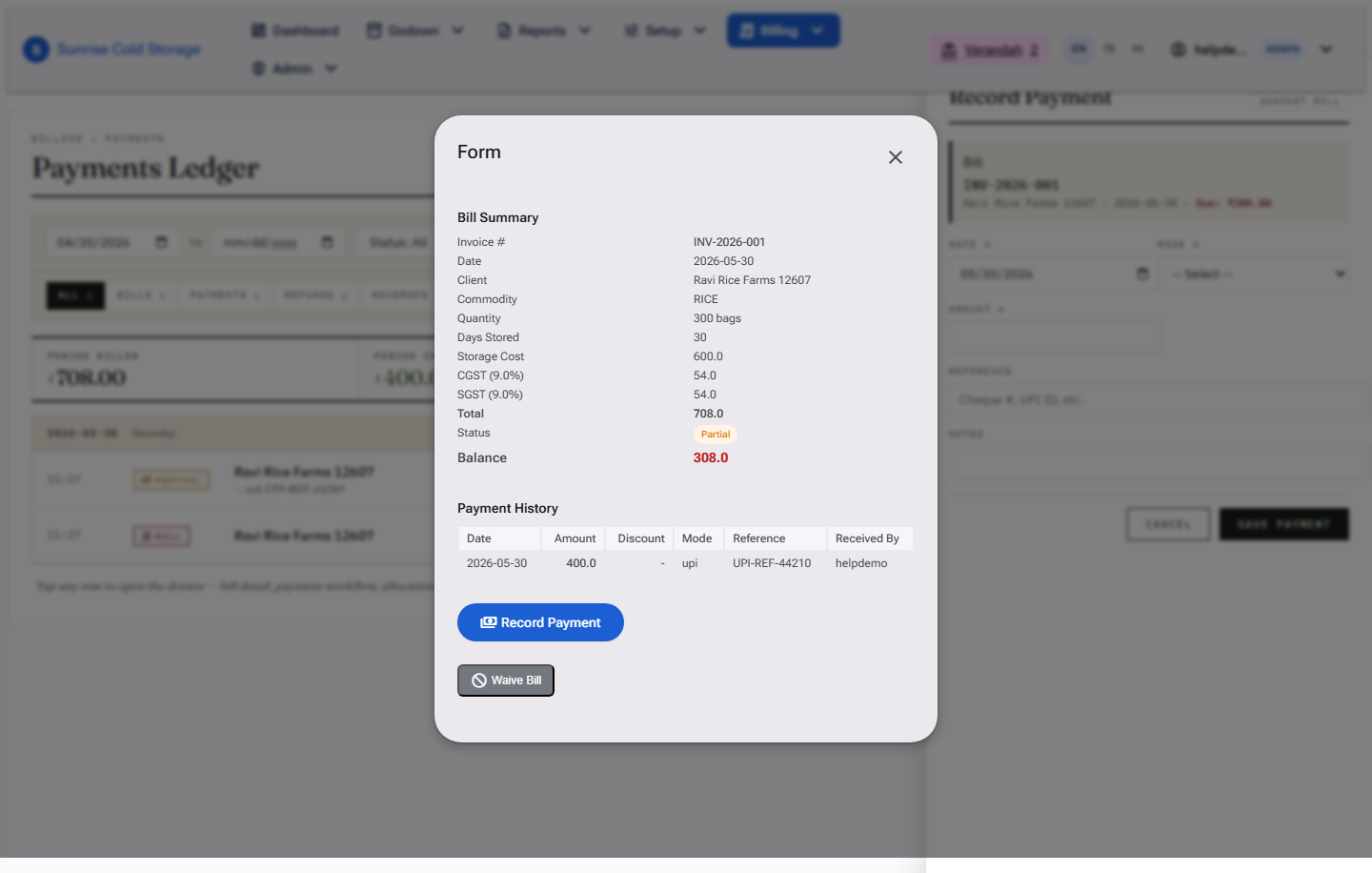
From a bill, use Record payment. Enter the amount, date, and payment mode (cash, upi, cheque, or bank_transfer); add a reference or discount if the plan allows discounts. The bill state moves automatically:
unpaid→partialwhen some balance remains,partial→paidonce the balance reaches zero.
Advance payments (not tied to a bill) can be recorded from the same drawer for clients on plans with the advance pool.
Step 5 — Waive a disputed bill (Admin)
If a bill should not be collected, an Admin can Waive it. The bill moves to state waived and drops out of outstanding totals. This is admin-only and audit-logged.
Per-day rate cards — charging by the day, not the whole month
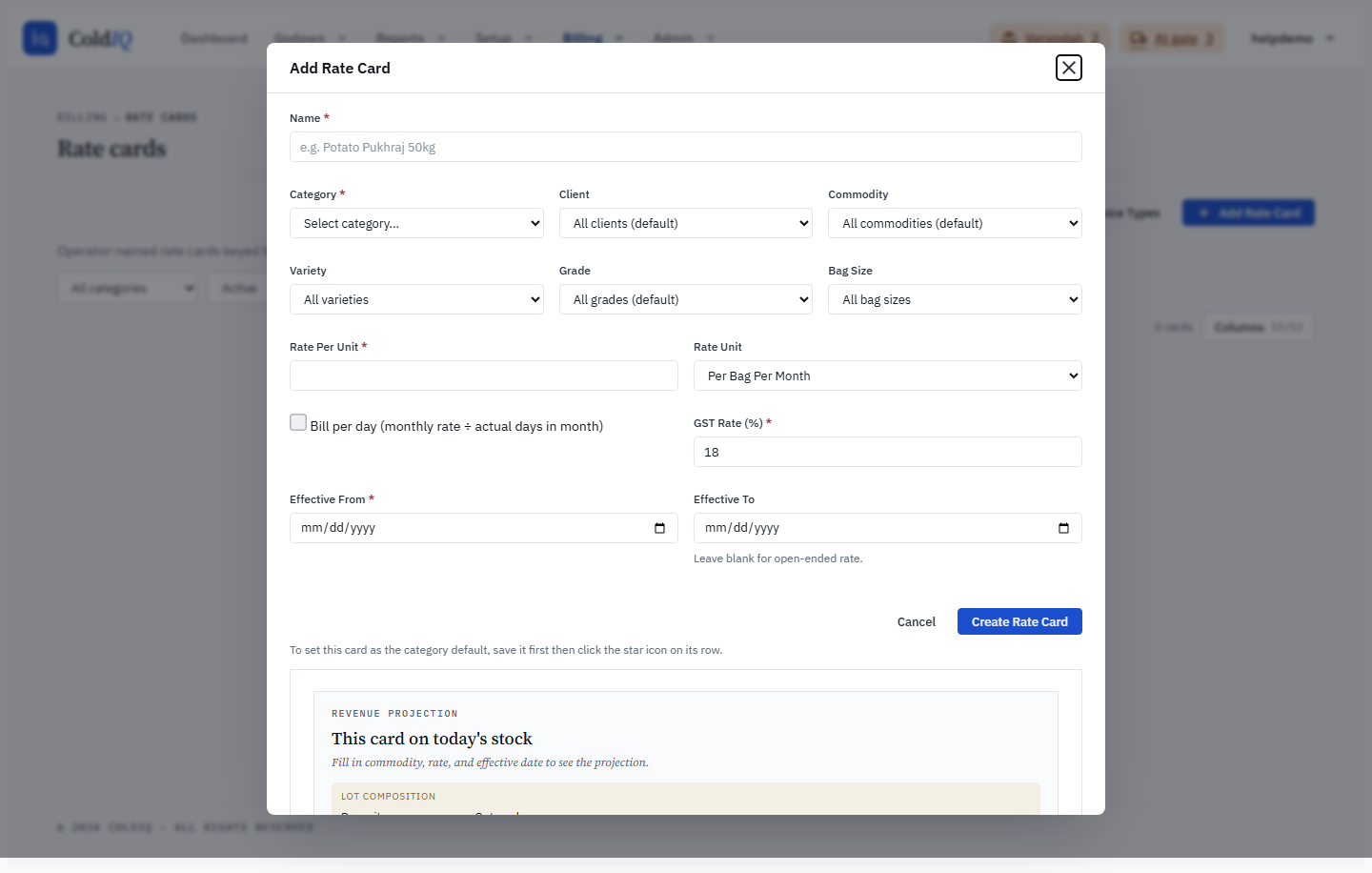
By default a monthly rate card (per_bag_per_month) charges a whole month for any month the lot is in storage, even a partial one — a lot stored for three days of November still pays for all of November. The Bill per day toggle on the rate card changes that: when it is ON and the card's rate unit is month-based, storage is prorated by the actual number of days the bags stayed in each calendar month.
The proration is split at month boundaries because every month has a different day count. The engine takes the monthly rate, divides it by the actual days in that calendar month (28, 29, 30, or 31), and charges that daily figure for the days the lot was in storage within that month. A lot spanning February into March is priced on February's daily rate for the February days and March's daily rate for the March days — never one flat divisor.
The flag is set per rate card under Billing → Rate Cards when you create or edit a card. It is inert on non-month units — a per_bag_per_day or seasonal per_bag card already prices the way its unit implies, so toggling Bill per day on those cards changes nothing. New cards default to OFF (the legacy whole-month behaviour), so existing pricing is unaffected until you opt a card in.
On the bill, a per-day storage line reads Base rate ₹X per bag per month, billed per day · N days so the depositor can see the day-count the charge was built from.
Bill line windows — per-window detail on the invoice
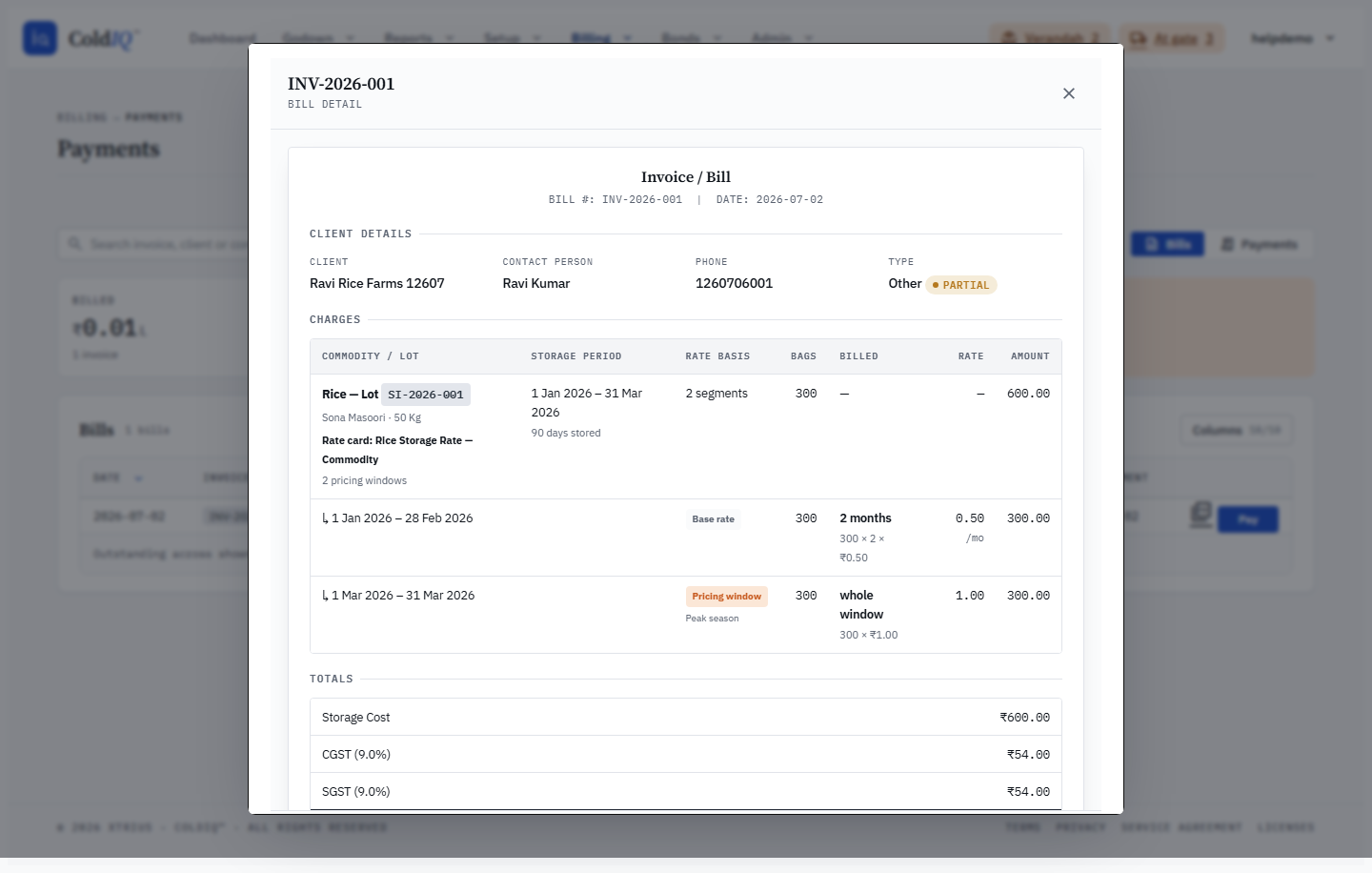
A rate card can carry several pricing windows (seasonal blocks, a peak-season rate, a base gap between them). At billing time the engine walks every window that overlaps the lot's storage horizon and collapses them into one storage line per delivered slot — but it also persists the pre-collapse breakdown so the invoice can show exactly which rate applied over which dates.
That breakdown appears under the storage line on both the Bill detail view and the printed invoice PDF as a full-width block. One row per window shows the date range, the window type (Base or Window), the rate per bag, the bags, the days, and the amount for that slice. Where a window came from a configured rate-card schedule, a muted sub-line shows the schedule's full (unclipped) configured range beneath the billed (clipped) range.
This breakdown is historical truth: it records the rates that actually applied to this bill and is immune to later rate-card edits. It is shown only for outward storage lines — inward handling, value-added, and insurance lines have no storage horizon and render no window block. A flat single-rate card produces a single Base window.
Cost Simulator — pricing and forecasting
The Cost Simulator (Billing → Cost Simulator) lets you model billing revenue before it is invoiced — to try a rate change, project what you'll bill over a horizon, or price a prospect. It is an optional feature; tenants without it are redirected to the dashboard with an upgrade prompt, and the rate-card form's live projection panel shows an upsell note instead.
The page is organised around three use-case tabs at the top:
- Operator What-If — try a rate change against today's stock and see how net revenue moves.
- Forecast — project what you'll bill over a chosen horizon.
- Sales Quote — price a prospect and export a quote.
Below the tabs, an input rail drives the simulation. You scope it by client, commodity, and location; pick a horizon (end of day / week / month / quarter, six months, end of year, or a custom date); choose a projection mode (static or trend); and nudge the rate-override sliders (storage, handling, insurance, value-added — each clamped to ±50%) plus an optional GST override. Toggles let you exclude held stock and apply a historic-collection haircut.
Every change recomputes the KPI results strip: Gross revenue (before tax and discounts), the tax split (CGST + SGST or IGST, decided by tenant + client state), Net revenue (what the client owes), and Expected collected (net adjusted by your historic collection rate). A pivot breakdown and a per-line drilldown sit under the KPIs.
Save scenario persists the current input rail under a name so you can reload it or line it up in the compare grid later. Export PDF renders a Sales Quote PDF of the current numbers — a client-ready quote carrying an optional quote number, the client label, and your facility name. (The Export button uses a background fetch rather than a plain form submit, so the download starts without leaving the simulator.)
The same simulation engine powers the live projection panel on the rate-card create/edit form, so the "what you'd bill" preview you see while building a card matches what the simulator and the billing engine resolve.

If this breaks
- "No rate card" / "configure a rate card" — no active card resolved for the commodity / bag size on the delivery date. The delivery still completes, but no bill is created. Open Billing → Rate Cards, add or activate a matching card, then re-bill from the delivery.
- "Amount + discount exceeds balance of ..." — the payment is larger than what's owed. Lower the amount, or record the surplus as an advance instead.
- "Discount is not available on the current plan" — discounts may be disabled for your tenant. Record the payment without a discount, or ask your administrator to enable it.
- "Bill is missing or already settled" — the bill was paid or waived since you opened the drawer. Reload the bill list.
- Bill per day made no difference — the toggle is inert on non-month rate units. It only changes pricing when the card's unit is month-based (
per_bag_per_month); a per-day or seasonal card already prices the way its unit implies. - Cost Simulator tab is missing / shows an upgrade pitch — the simulator is an optional feature. Tenants without it are redirected to the dashboard with an upgrade prompt and see an upsell note on the rate-card projection panel instead.
- Export PDF did nothing — the quote download runs as a background fetch from the simulator; check the browser's downloads. If the simulator has no stock in the current scope, the quote prices to zero.
Related
See also: Stock Outward, Auto-Close, Reports.