Reports turn the live warehouse and billing data into summaries you can read on screen or hand to a client. Every report aggregates in the database and renders a table; most can be exported to PDF, CSV, or XLSX. Some reports and all exports are optional features — the page stays open, but the download or the report itself is blocked when the feature isn't enabled for your tenant.
Step 1 — Open Reports and choose a report
From the top navigation, choose Reports. The reports are grouped:
- Stock — Client Stock Statement, Warehouse Occupancy, Overcapacity
- Operations — Daily Operations, Commodity Report, Insurance, Representatives
- Receipts — Multi-receipt Print (Inward, Outward, Handling, and VA Services receipts in one place)
Pick the report that answers your question. The Client Stock Statement is always available; Warehouse Occupancy, Overcapacity, Daily Operations, Commodity Report, Insurance, and Multi-receipt Print are optional features and only appear when they're enabled for your tenant. A Handling Charges receipt for a specific intake or delivery is reached from that intake/delivery's confirmation screen (it no longer has a separate Reports lookup page).

Step 2 — Set the filters
Each report exposes the filters that make sense for it:
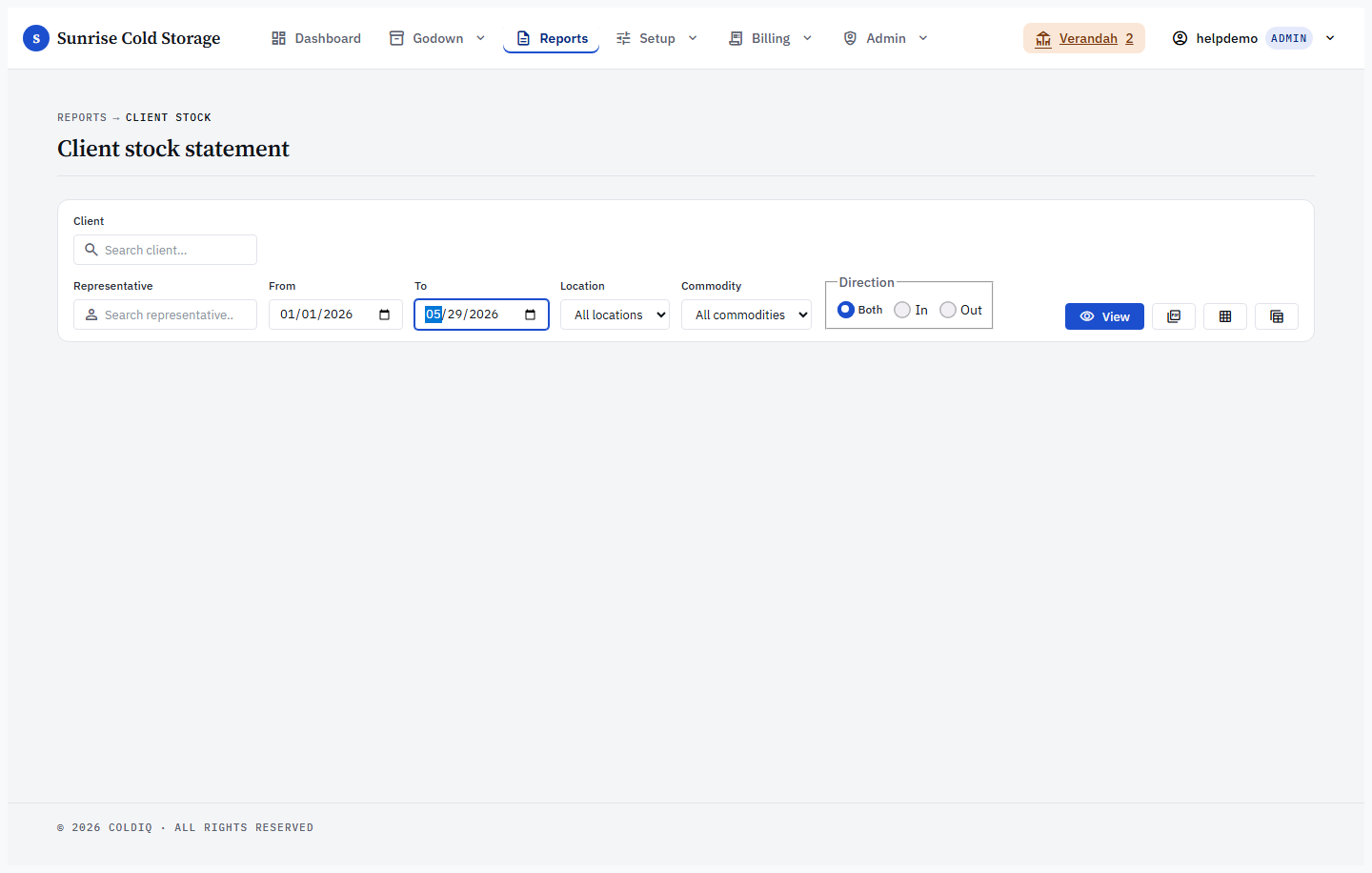
- Client Stock Statement — pick a client (required), then narrow by date range, location, commodity, and direction (inward / outward / both).
- Daily Operations — pick a single date; optionally scope to specific locations.
- Warehouse Occupancy — filter by chamber and/or client.
- Commodity Report — set a from / to date range.
- Insurance and Overcapacity — filter by client (and representative, for overcapacity).
Filters are applied as you change them. A client is mandatory for the Client Stock Statement — without one you get "Client ID is required".
Step 3 — Read the on-screen result
The report renders a table or a set of totals in place. Aggregation happens in SQL, so even high-volume clients return quickly. If the filters match nothing, you get a plain empty state rather than an error — for example "No transactions found in the selected date range." (Commodity Report), "No transactions for this date." (Daily Operations), or "No occupancy data." (Warehouse Occupancy).
Step 4 — Export
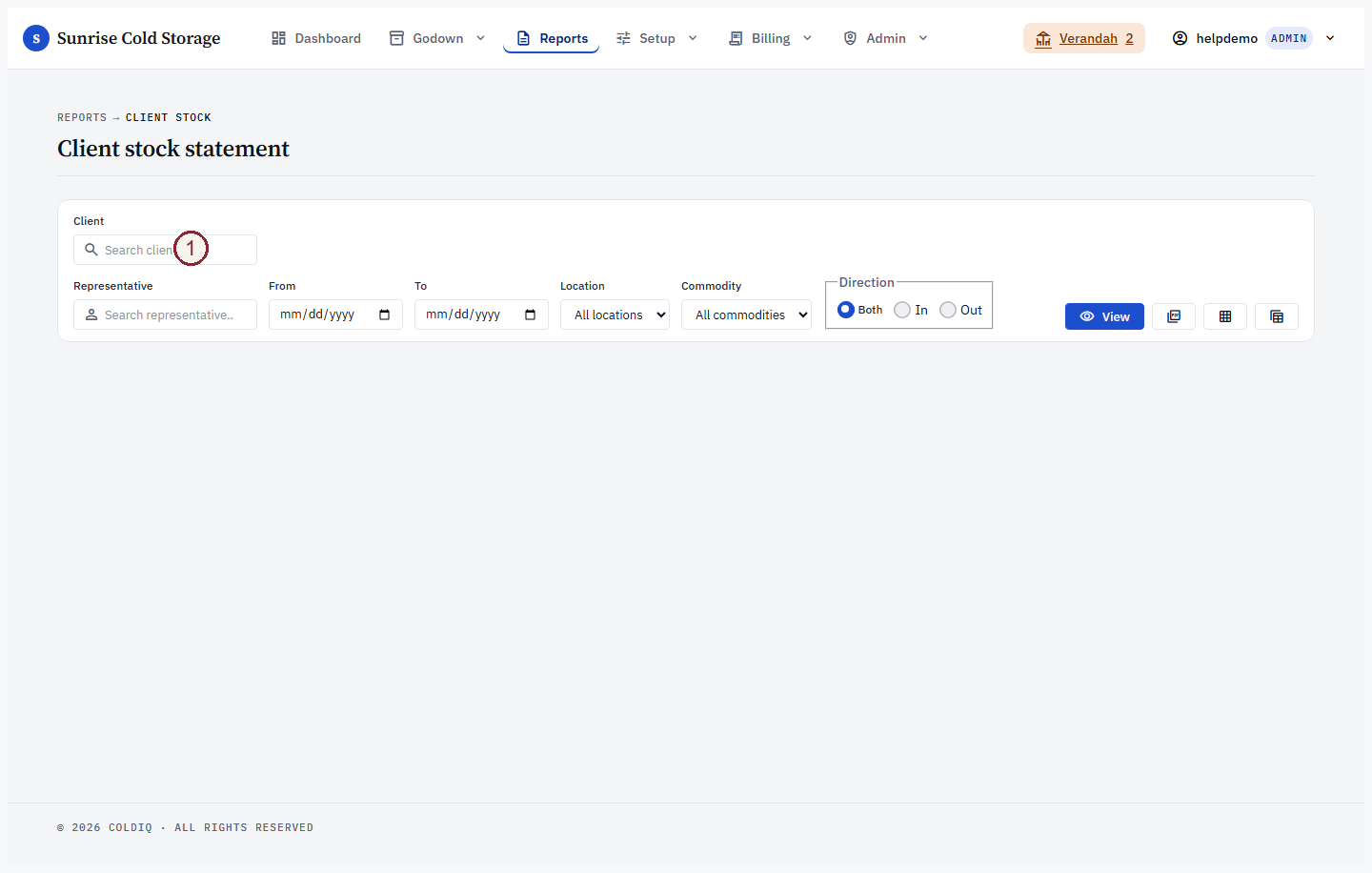
Use the PDF, CSV, or XLSX buttons to download the report. PDF is the client-facing layout; CSV and XLSX are the raw rows for your own analysis. Large datasets stream to the file, so exports do not stall on big clients.
Exports are treated as an optional feature: the report page opens regardless, but PDF/CSV/XLSX downloads must be enabled for your tenant. When they aren't, the button redirects you to an upgrade prompt instead of producing a file.
Step 5 — Plan and access checks
A report or export will not run if it isn't enabled for your tenant or your role does not allow it.
Chain Report — tracing a lot end to end
The Chain Report walks one stock movement all the way through: lot → outward → bill → payment. Each delivered segment becomes a row showing the source lot, the depositor, the outward slip, the bags delivered, the bill it landed on, the bill amount, the payment status, the amount paid, and the outstanding balance. Bags that are still in store appear as their own row with the outward, bill, and payment cells empty and a status of In store. Bags that were delivered but not yet billed read Unbilled.
Chain Report is an optional feature. When it isn't enabled the report shows an upgrade teaser instead of the table.
Open it from Reports → Chain Report. The client picker is optional — leave it blank to report across all clients. Narrow further with the Receipt # box (type any fragment of an SI-, SO-, or INV- number to home in on a single lot, delivery, or invoice), a From / To date range, a Location, and a Commodity. Filters apply as you change them.
In the on-screen result every reference cell is clickable. The Lot cell opens the inward receipt in a modal, the Outward cell opens the outward (delivery) receipt, and the Bill cell opens the bill detail modal showing the line items and payments. What you can open depends on your access: the lot and outward links appear only if you can view those receipts, and the bill link appears only if you have billing access. The money tiles at the top — Segments, Billed, Collected, and Outstanding — count each bill once even when one bill spans several delivered segments, so they reconcile to the real billed figures rather than double-counting.
Export the same data to PDF, CSV, or XLSX from the export buttons. The PDF prints in landscape so the wide nine-column table fits; the references print as plain text (links are screen-only).

Client Account Statement — a running-balance ledger
The Client Account Statement is one depositor's chronological ledger — every charge and credit on their account with a running balance carried forward row by row. It opens with the Opening balance (everything charged minus everything credited strictly before the From date), lists each event in order, and closes with the Closing balance — outstanding plus a period-totals line for charges and credits. This is the document you hand a client to show exactly what they owe and why.
A client is required for this report — pick one from the client picker, then optionally set a From / To date range. Account Statement is an optional feature; when it isn't enabled it shows an upgrade teaser.
The ledger has a Type column that names what each row is: a bill reads as Invoice, payments read Payment, and reversals/refunds read with their own label. The Charge column carries invoice amounts (what increases the balance), the Credit column carries payments (what reduces it), and Balance shows the running total after that row. In the on-screen view the Document cell on an invoice row opens the bill detail modal (billing access required); the Particulars cell names the source — the storage lot, handling, VA service, or insurance line — that produced the charge.
Export to PDF, CSV, or XLSX with the export buttons. All four renderings — screen, PDF, CSV, and XLSX — use the same column order and the same opening and closing bracket rows, so an exported statement matches what you saw on screen, and an empty period still prints its opening and closing balances.

Provenance from a bill
You can also reach these traces from the other direction. On a bill's detail view, each line carries its source lot's receipt number as a deep link, so you can jump from a single charge straight to the lot or delivery that produced it — the same provenance the Chain Report rolls up. Use the Chain Report when you want the whole lot's story in one table, and follow the bill-detail links when you start from a specific charge.
If this breaks
- "Client ID is required" — the Client Stock Statement needs a client selected. Pick one from the client filter before running or exporting.
- "No inward record found for …" / "No outward record found for …" — the receipt number does not match a recorded transaction. Re-check the number; the row may still be in the Verandah hold (not yet approved).
- Export button redirects to an upgrade screen — PDF/CSV/XLSX exports are an optional feature. Ask an Admin to enable it, or read the report on screen instead.
- A report is missing from the Reports menu — that report is an optional feature not enabled for your tenant, or your role lacks access. An Admin can confirm under feature settings and
/manage/roles. - "PDF generation failed: …" — retry; if it persists on one very large client, export CSV/XLSX instead and report the client to an Admin.
- Chain Report or Account Statement shows an upgrade teaser — both are optional features. Ask an Admin to enable them; when they aren't enabled the table is replaced by the upsell pitch.
- Account Statement says "Client ID is required" / "Client not found" — the report needs a client selected (it pulls one depositor's full ledger). If you have a location-scoped role and the client has no stock in your locations, you get the same "Client not found" so no out-of-scope client is revealed — ask an Admin to widen your location access.
- Chain Report row reads "In store" or "Unbilled" — that is expected, not an error. "In store" means the lot still has undelivered bags; "Unbilled" means bags were delivered but no bill has been raised yet.
- Receipt # filter returns nothing on the Chain Report — the fragment is matched against
SI-/SO-/INV-numbers; in-store remainder rows match on the lot (SI-) number only. Re-check the number, or clear the box to see all segments.
Related
See also: Stock Inward, Stock Outward, Bonds, Billing Cycle.