A Gate Pass is the lightweight record a watchman raises the moment a truck reaches the gate — before any stock entry happens. It captures whatever the gateman can see (vehicle number, driver, rough load) so the vehicle takes a place in the day's queue, gets a printable token, and is later picked up by Staff who do the real Stock Inward or Outward. Every field is optional: the point is to log the truck fast, not to fill a form.
Gate Pass is an optional feature. When it isn't enabled, the Gate Pass page is replaced by an upgrade pitch, and the topbar "At gate" count does not appear.
Step 1 — Open the gate queue board
From the top navigation, Stock → Gate Pass opens the daily queue board at /gate-pass. The board shows one lane at a time across the vehicle's life: At gate → Recorded → Exited, plus a Rejected lane for trucks turned away. The four cards at the top are both the live counts and the tab switcher — click a card to swap that lane in.
By default the board shows today only. A single filter row above it lets you narrow by Location (shown only when the tenant has more than one), Date (pick a past day for the tracking-history view), and Vehicle Number, then Search or Clear.

Step 2 — Capture a vehicle at the gate
Press New pass. A capture form opens in a dialog. Pick the direction — Inward, Outward, or Decide later (the default) — then fill in whatever is known:
- Vehicle Number — typed in upper case automatically.
- Driver Name and Driver Phone (phone must be exactly 10 digits if entered).
- Client, Commodity, Variety, Grade — each is a search-or-type box. Pick an existing name to link it, or type a name that isn't in the list to record it as free text. The gate never creates a master record; typed names are just remembered on the pass.
- Bag Quantity (a positive number) and Deposit Date.
- Storage location (optional; auto-selected when there is only one accessible location).
Press Record gate pass. Nothing is required — fill what you know and submit.

Step 3 — Hand over the token
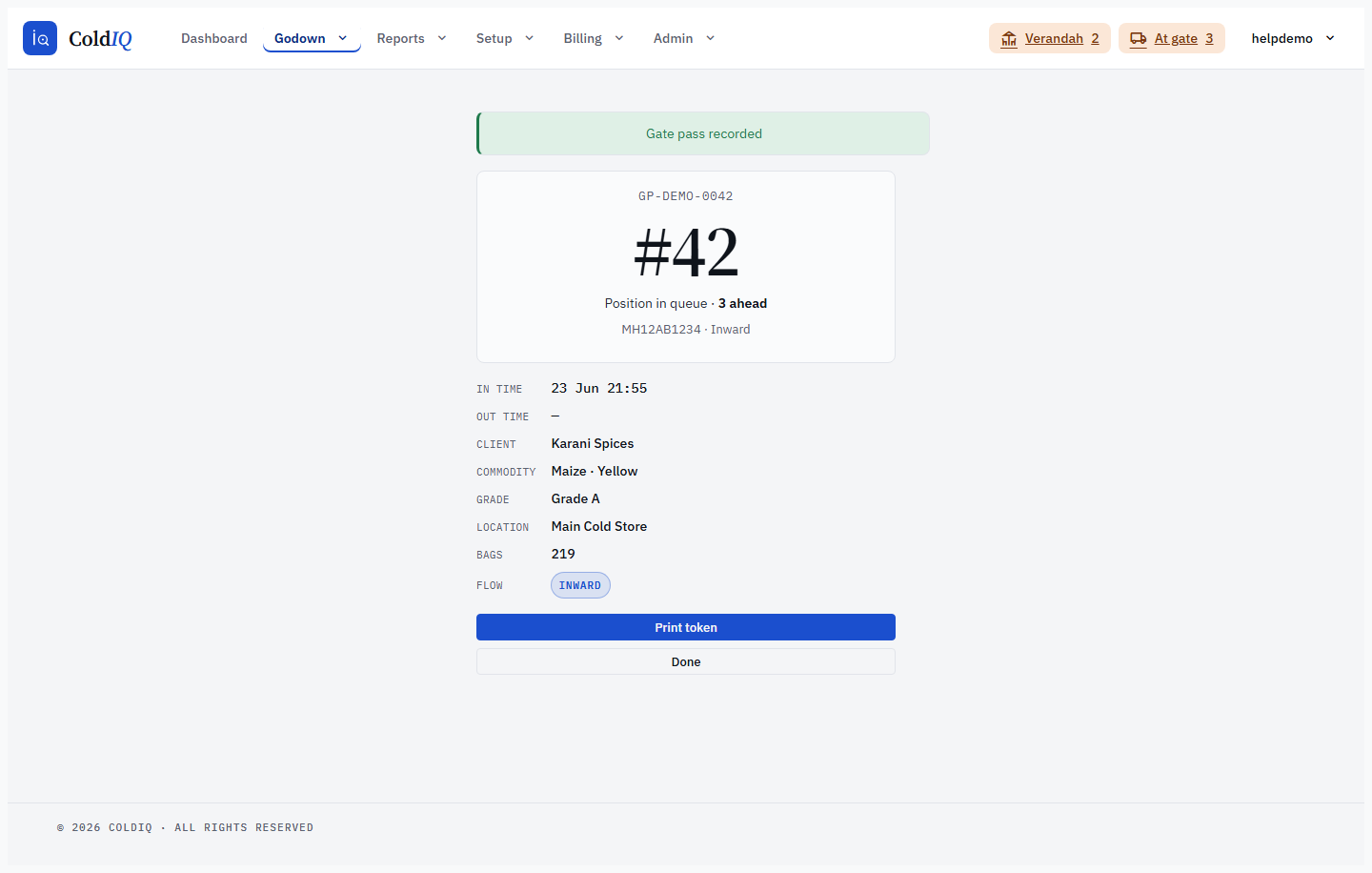
On save the pass becomes at_gate and a success card shows its token — a big daily number (#1, #2, …) over a durable code like GP-20260623-007, plus its position in queue ("Next" or "N ahead") and a read-back of the captured details. Press Print token to open the printable PDF in a new tab to hand to the driver, or Done to close. The board behind the dialog refreshes to show the new vehicle in the At gate lane without a reload.
If the same vehicle number is already waiting in today's queue, the pass is still created but a soft warning ("already in today's queue — added anyway") appears. It is a heads-up, not a block.
Step 4 — Record the stock (at_gate → recorded)
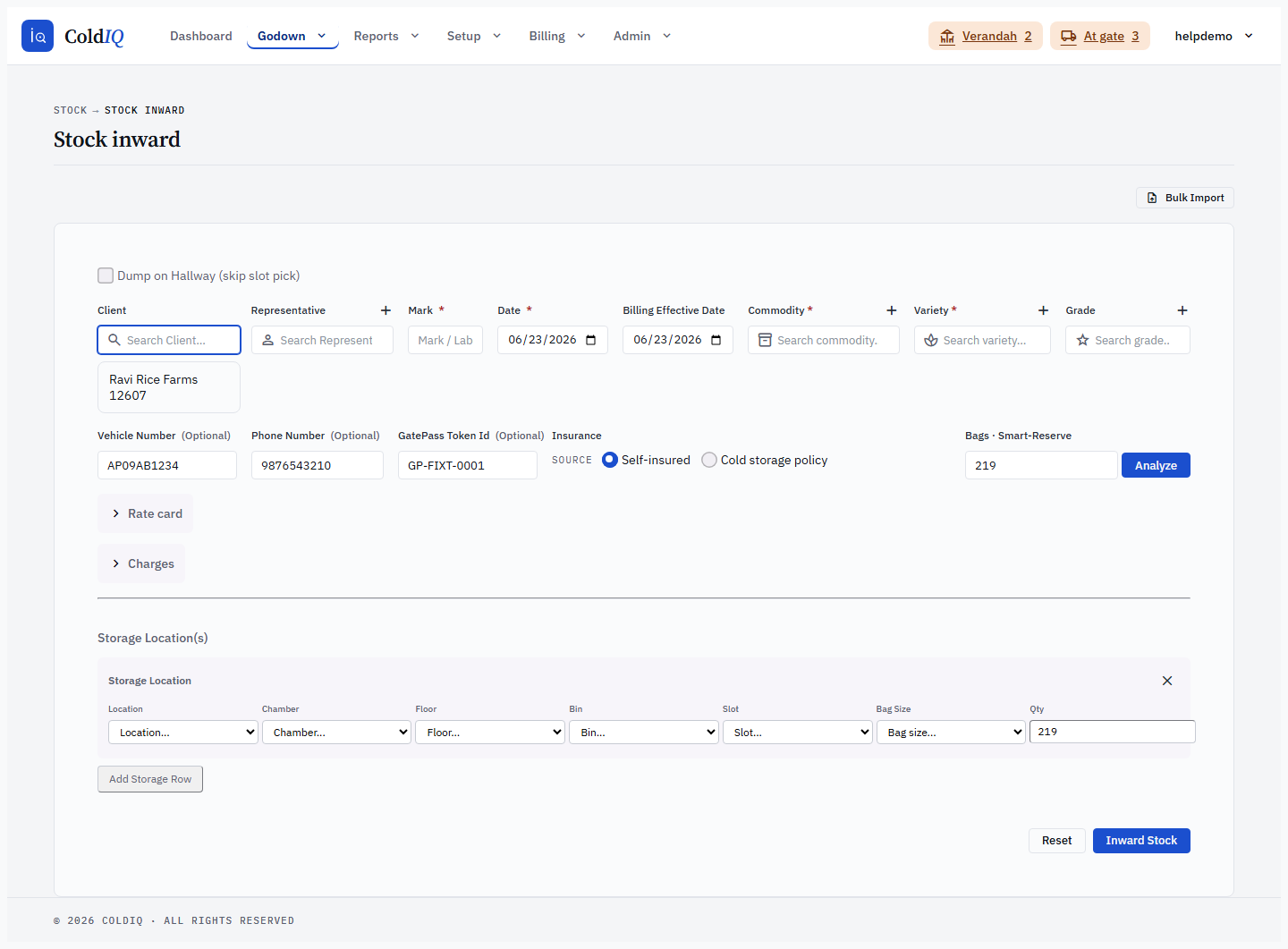
When Staff are ready to do the real entry, open the vehicle's row in the At gate lane and use Open in Stock Inward or Open in Stock Outward. This opens the normal stock page with the gate-pass details pre-filled — vehicle, driver, client, commodity, variety, grade, bags, deposit date — and the gate-pass token shown read-only. Completing that stock entry stamps the pass recorded and links it to the real receipt.
A pass pre-fills only while it is still at_gate. Once recorded, exited, or rejected it is no longer re-pickable. The direction is enforced too: an Outward pass cannot be opened on the Stock Inward page and vice versa (a pass left at "Decide later" can go either way).
Only the stock pages a user can reach show their link — a gate-security user who has no stock pages sees no "Open in…" action.
Step 5 — Record exit (recorded → exited)
Once the truck leaves, mark its exit so the queue reflects reality. There are two ways:
- From the board — in the Recorded lane, use the row's Exit action, confirm, and the pass flips to exited with an out-time stamped. A success card with the printable token appears and the lane refreshes behind it.
- From the Vehicle Exit screen — the Exit button at the top of the board opens a dedicated lookup at
/gate-pass/exit. Search by gate-pass number or vehicle number to find one recorded pass and mark it exited, or use the bulk list to tick several recorded passes and exit them in one action.
Only recorded passes can be exited; the exit search finds nothing for a pass that isn't in the recorded state.

Step 6 — Rejecting a truck at the gate
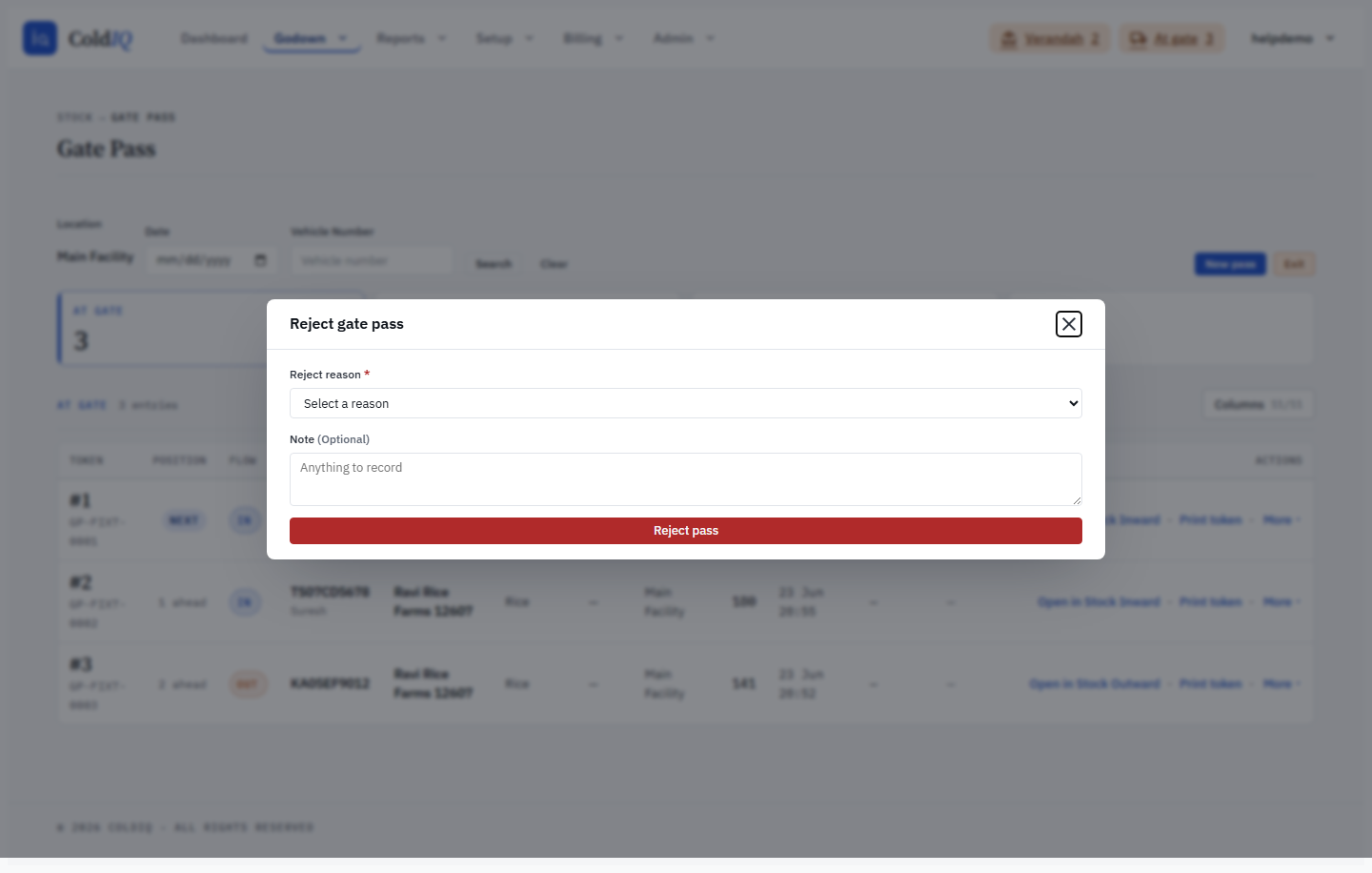
If a vehicle is turned away — wrong papers, no space, sent back — use the Reject action on its At gate row. Pick a reason from the short list (Wrong / missing documents, No space available, Sent back at gate, Duplicate entry, Other) and add an optional note. The pass moves to the Rejected lane, where the reason and note are shown for the record.
The "At gate" topbar pill
The topbar carries an At gate count that shows how many vehicles are waiting to be recorded today, in your accessible locations. It refreshes on its own roughly every half-minute and is quiet at zero, turns amber while trucks wait, and red past a busy threshold. Clicking it jumps to the queue board. The pill only appears when Gate Pass is on the plan and you can reach the queue.
Access and attribution
Reaching the Gate Pass board, the capture form, the reject and exit actions, and the topbar pill are all controlled by the gate_pass_queue page key — an admin grants or removes it per role at /manage/roles without a deploy. A user assigned to specific locations only sees and acts on passes at those locations, plus the passes they personally created (so a watchman's own no-location passes never vanish from their board). Unrestricted roles (admin, executive) see every location's passes.
Every pass records who created it. That created-by attribution is what lets a scoped operator keep acting on a pass they raised even if it has no location yet, and it keeps cross-location and cross-user access closed — a scoped user can never reject, exit, or open another location's pass that they did not create.
If this breaks
- No Gate Pass tab, or it shows an upgrade pitch — Gate Pass isn't on the tenant's plan, or your role lacks the
gate_pass_queuepage access. Ask an admin to enable the feature or grant the page at/manage/roles. - "Phone must be 10 digits" — the driver phone must be exactly 10 digits, or left blank. Strip any country code or spaces.
- "Bag quantity must be a positive number" — bags must be a whole number greater than zero, or left empty.
- Vehicle "already in today's queue" warning — the same vehicle number is still waiting today. This is a soft warning only; the pass is still created. Reject the duplicate if it was raised in error.
- "Open in Stock Inward / Outward" is missing on a row — the pass is no longer at_gate (already recorded, exited, or rejected), the direction doesn't match the page, or your role can't reach that stock page.
- "That gate pass is no longer available" — the pass was rejected, exited, or removed by someone else while your board was stale. The board re-renders to the current state; refresh and retry against a live row.
- Exit search finds nothing — exit only matches a pass in the recorded state. An at_gate pass must be recorded into stock first; an already-exited pass won't come up.
- Print token shows an error instead of a PDF — the token PDF needs the server's PDF libraries, which are present in the deployed environment but may be missing on a local dev box.
Related
See also: Stock Inward, Stock Outward, Verandah.