Module Names lets you relabel the top-level navigation modules to match the words your warehouse already uses — for example, showing Bonds as "Pledge Receipts", or Setup as "Master Data". This is a display-only change: the underlying routes, permissions, and audit-log labels stay the same, so nothing about how the app works changes — only the words shown in navigation.
Only the top-level modules can be renamed — the items in the top bar and bottom navigation (Dashboard, Stock, Reports, Setup, Billing, Integrity Vault, Admin). You cannot rename individual pages inside a module (such as "Inward Stock" or "Rate Cards") from here.
Step 1 — Open the Module Names page
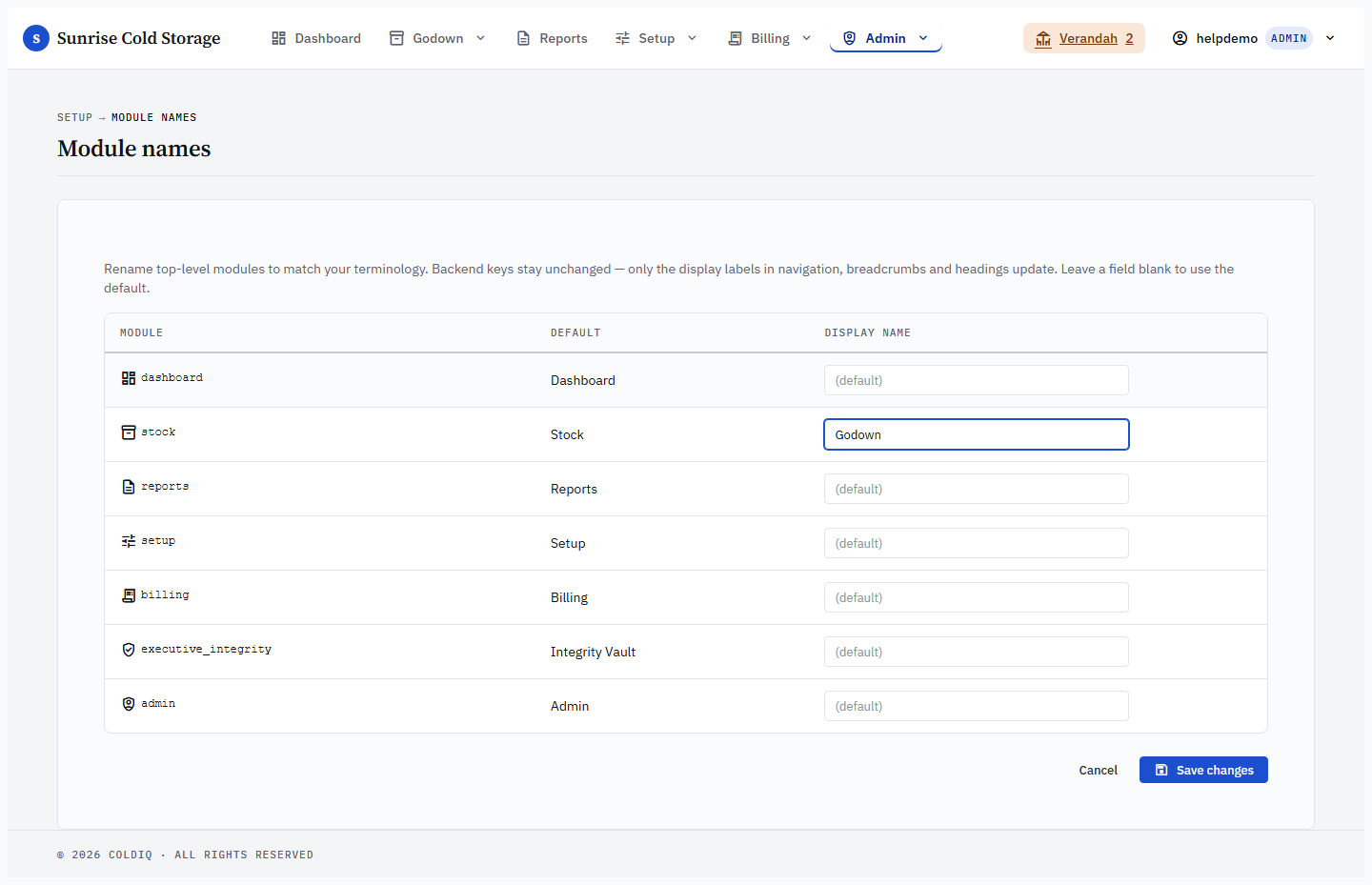
From the top navigation, choose Admin → Module Names. The page lists every top-level module in a table: its icon and internal key on the left, the default name in the middle, and an editable Display name field on the right.

If you do not see this item under Admin, it is not enabled for your tenant — Module Names is an optional feature. When it isn't enabled the page is hidden and the canonical names are always used.
Step 2 — Enter a display name
Type your preferred label into the Display name field beside the module you want to rename. Leave a field blank to keep that module's default name. Each name can be up to 48 characters and cannot contain the < or > characters.
Step 3 — Save
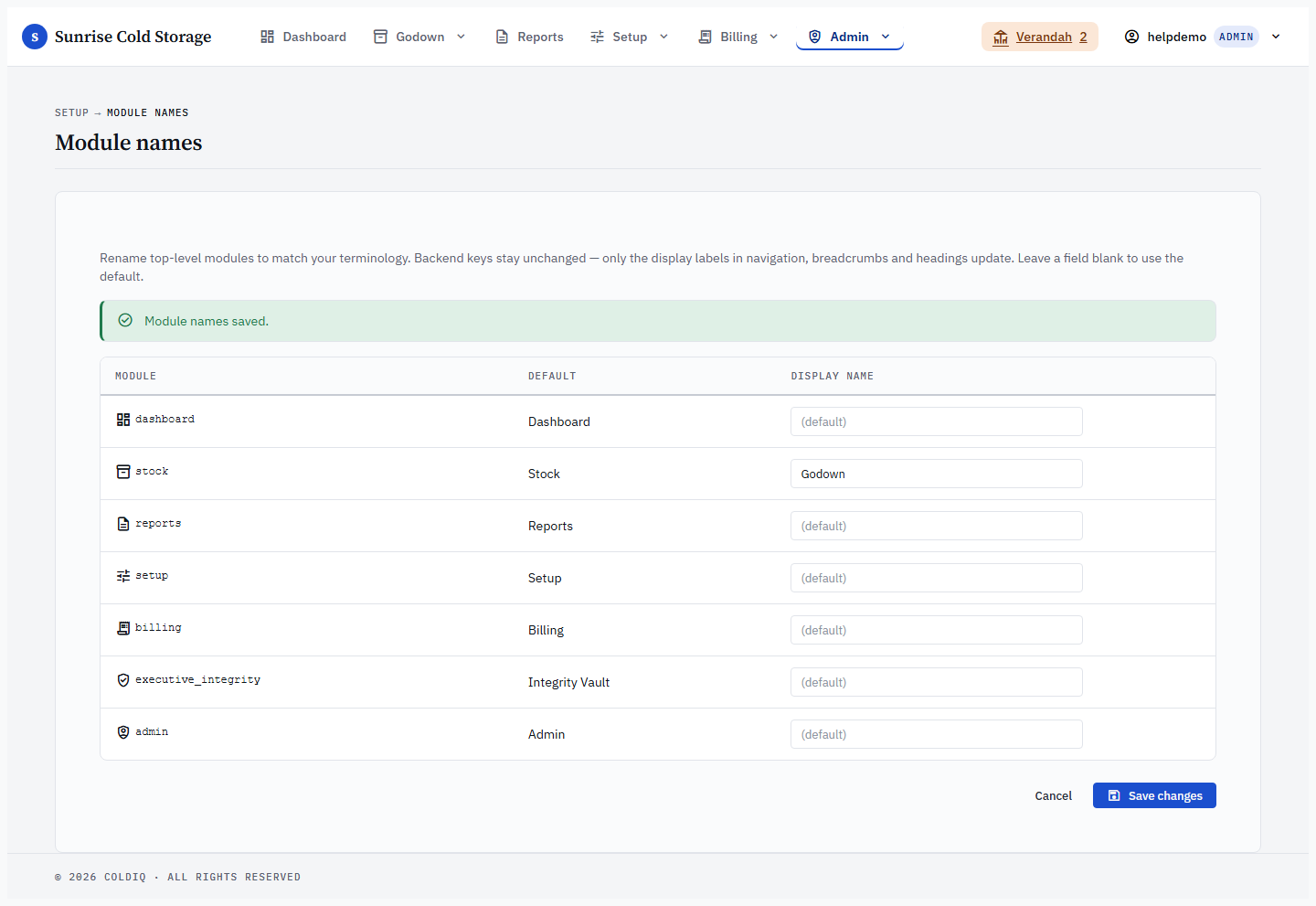
Press Save changes. Unchanged rows are skipped, and only the rows you edited are written. On success the page reloads with a "Module names saved." banner.
Step 4 — Verify the new labels
Your new names take effect across navigation — the top bar, the mobile bottom navigation, and the module menu all read the aliases. Open any page and confirm the renamed module now shows your label.
Aliases are cached for up to five minutes per tenant, but saving clears that cache immediately, so the new label should appear on your next page load.
Step 5 — Reset a module to its default
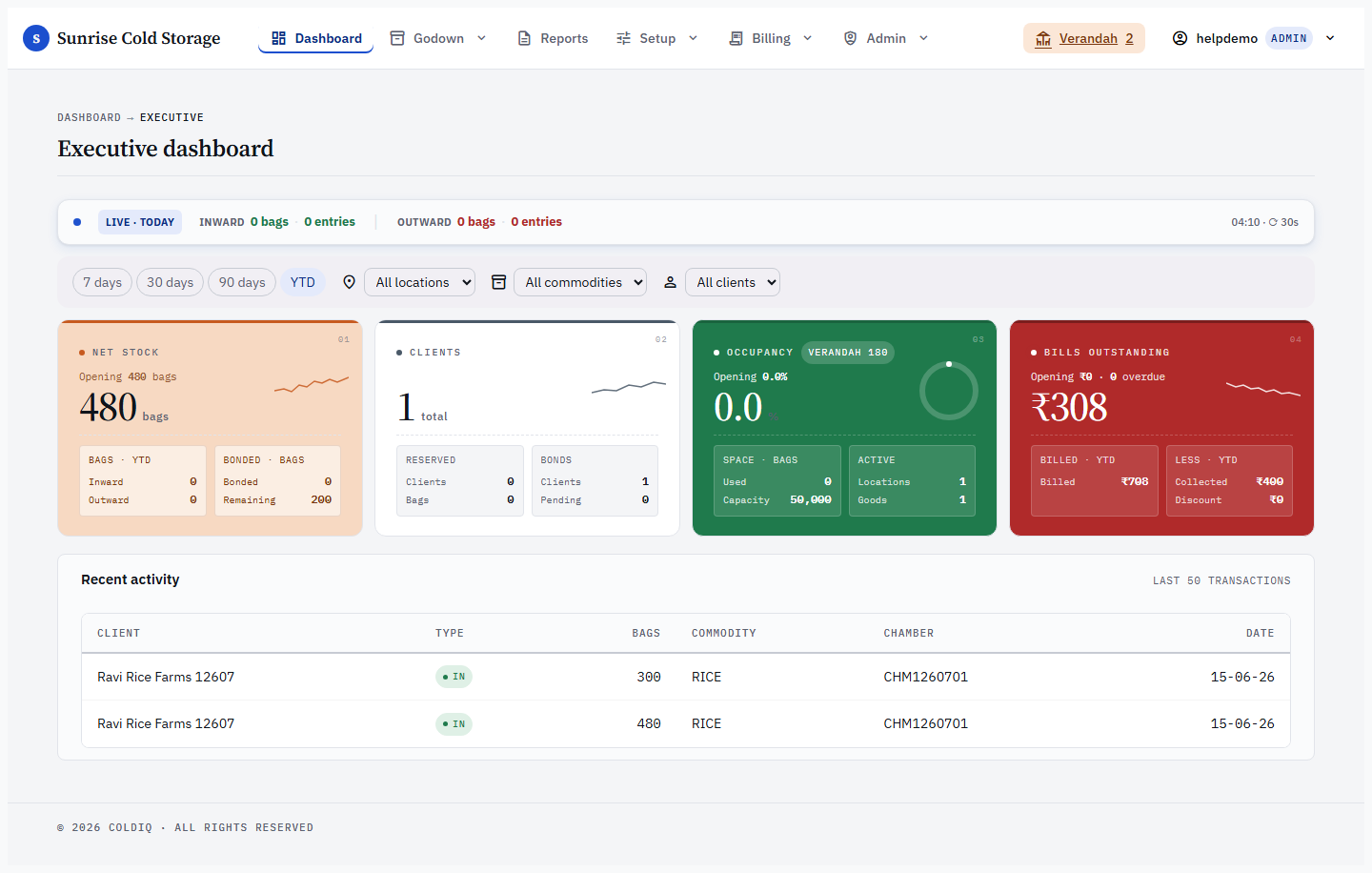
To restore a module's original name, clear its Display name field and press Save changes. The override row is deleted and the module falls back to its canonical default name everywhere.
If this breaks
- Display-name error on save — the page reloads with a red banner. Each name must be 1–48 characters after trimming spaces and cannot contain
<or>. Fix the offending field and save again. - Module Names not listed under Admin — per-tenant module naming isn't enabled for your tenant. Ask your administrator to enable it, or use the default names.
- Old name still showing after save — labels are cached for up to five minutes; saving normally clears the cache. If a stale label lingers, reload the page. Renamed labels apply to navigation, breadcrumbs, and headings only — route URLs, permissions, and the audit trail keep the original module keys.
Related
See also: Roles, Users.